SmartLawyer User Guide

Everything you need to manage office work, step by step

Choose an app page from the guide menu to see clear actions, practical tips, and an Arabic screenshot of the live screen.

Open the app
53 documented pages and features
Quick start

Start using the system in the right order

Five steps help a new office prepare its data and begin daily work.

  1. 1

    Complete office settings

    Set the office identity, locations, time zone, currencies, and the lookup lists used by the rest of the system.

  2. 2

    Add your team

    Create lawyers, employees, job titles, and the access permissions needed by each role.

  3. 3

    Register clients and legal work

    Add clients first, then create cases or consultations and connect them to the correct people and office records.

  4. 4

    Plan daily work

    Use My Page, Calendar, Tasks, sessions, and team chat to coordinate follow-up work.

  5. 5

    Review documents and results

    Store documents, run approvals, record financial activity, and use reports to review office performance.

Page guides

Choose the page you want to learn

The guide follows the same groups as the app sidebar and top navigation.

Dashboard & My Work

Dashboard

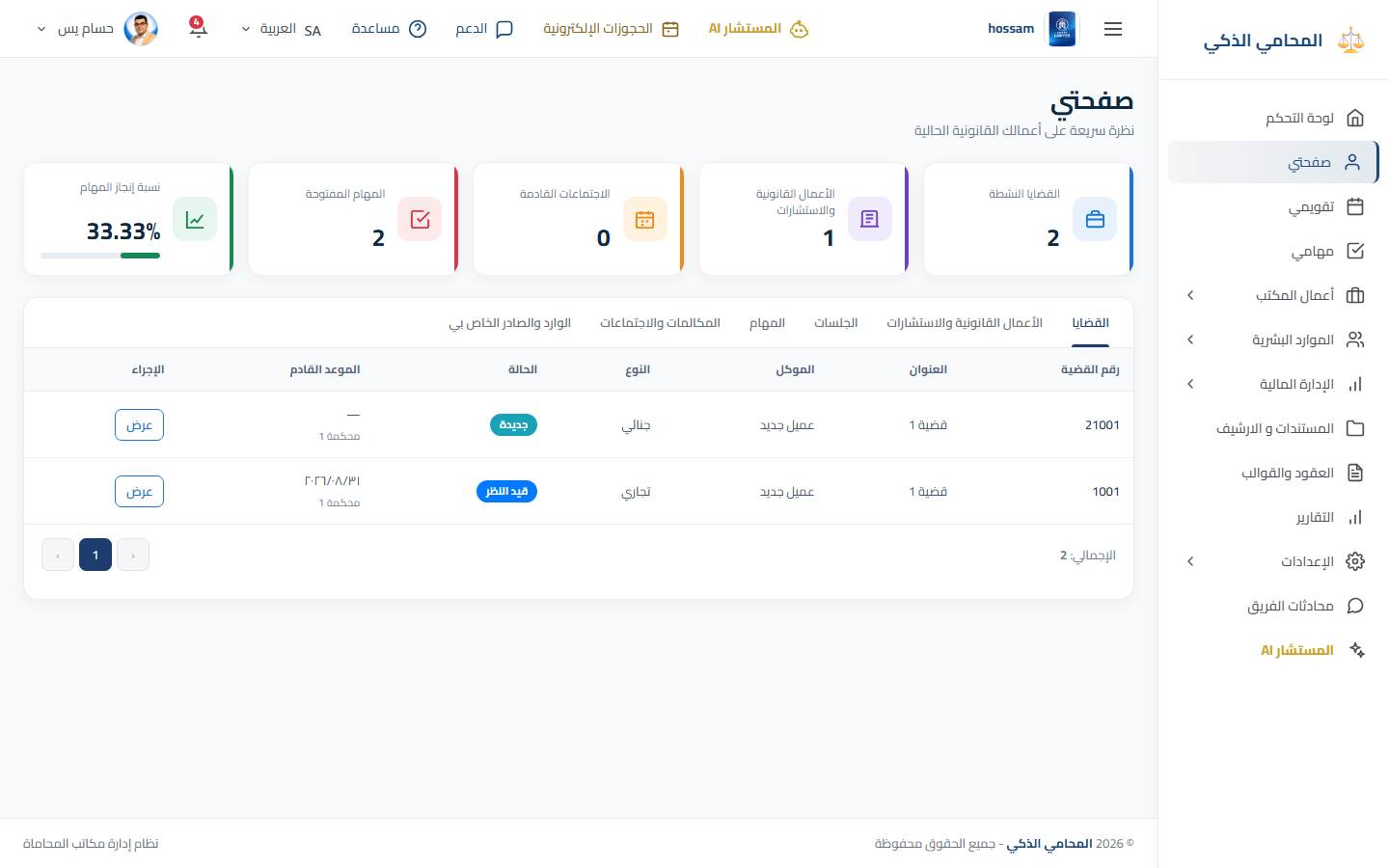
A daily overview of cases, clients, sessions, tasks, revenue, and recent office activity.

When should you use this page?

Start here to identify what needs attention today.

Steps

  1. 1

    Open Dashboard from the sidebar.

  2. 2

    Review the summary cards and upcoming work.

  3. 3

    Check charts and recent records.

  4. 4

    Use a quick action to open the item you want to handle.

Practical tips

  • Dashboard values follow your permissions and selected office.
Arabic app screen
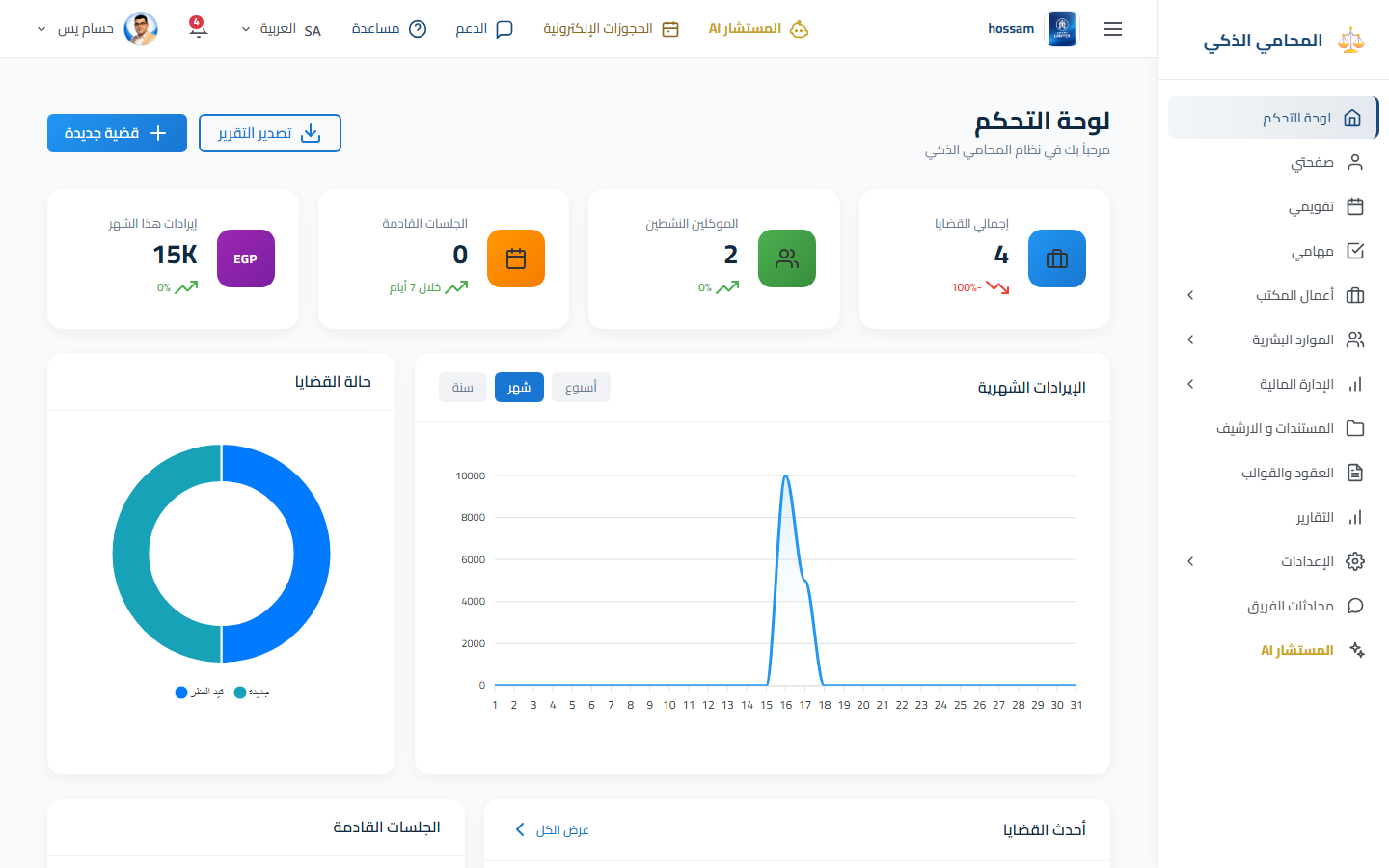
Arabic dashboard overview.
Dashboard & My Work

My Page

A lawyer-focused view of assigned cases, consultations, sessions, tasks, and performance.

When should you use this page?

Review only the legal work assigned to you.

Steps

  1. 1

    Open My Page.

  2. 2

    Choose the required time period or filter.

  3. 3

    Review assigned cases, sessions, and tasks.

  4. 4

    Open any record that needs an update.

Practical tips

  • This page is available to lawyer accounts.
Arabic app screen
Arabic My Page workspace.
Dashboard & My Work

My Calendar

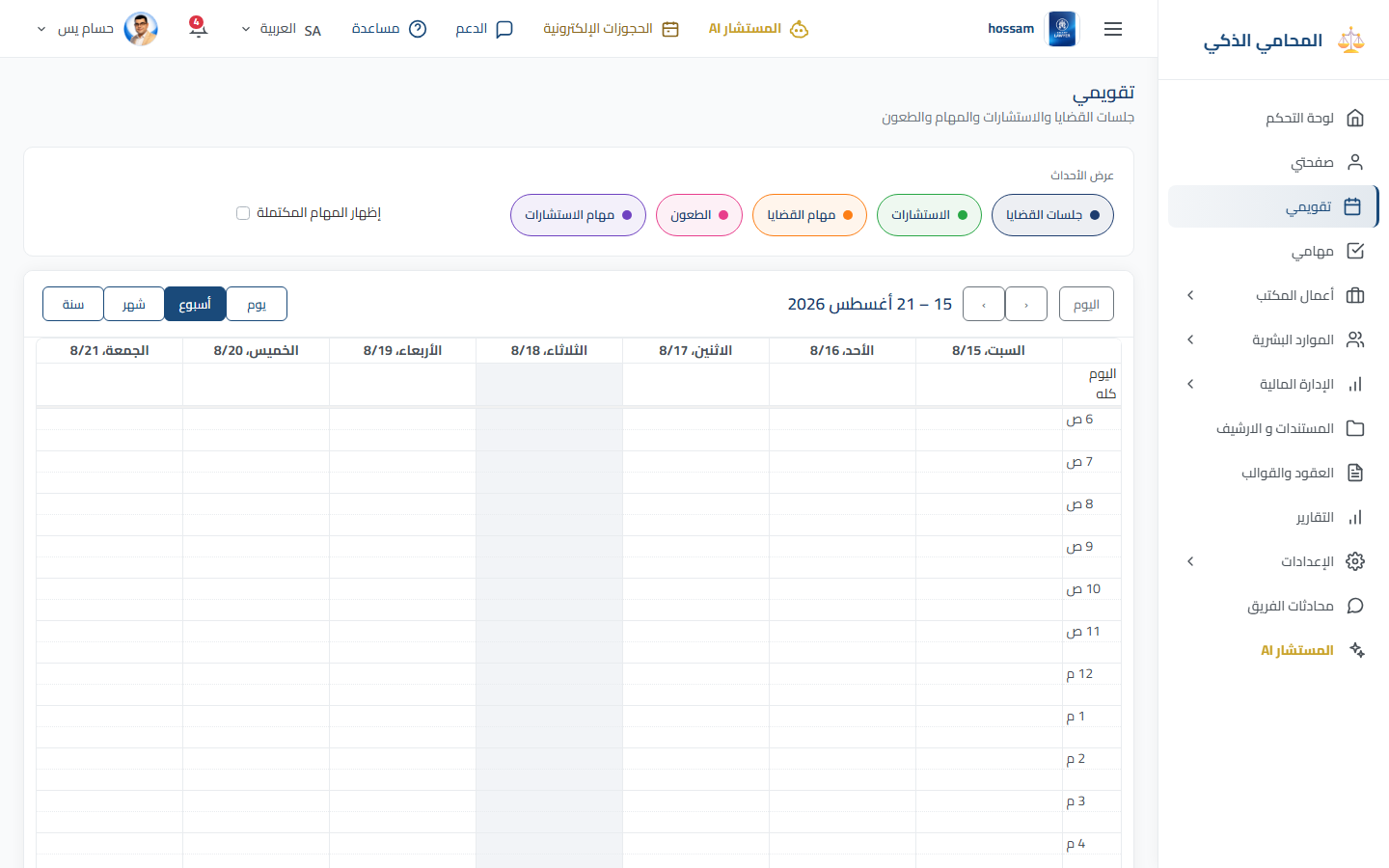
A calendar for case sessions, consultations, and assigned tasks.

When should you use this page?

Plan your day, week, or month and avoid missed appointments.

Steps

  1. 1

    Open My Calendar.

  2. 2

    Choose day, week, month, or year view.

  3. 3

    Move to the required date.

  4. 4

    Show or hide event types.

  5. 5

    Select an event to review its details.

Practical tips

  • Calendar entries come from their related case, consultation, or task.
Arabic app screen
Arabic calendar view.
Dashboard & My Work

My Tasks

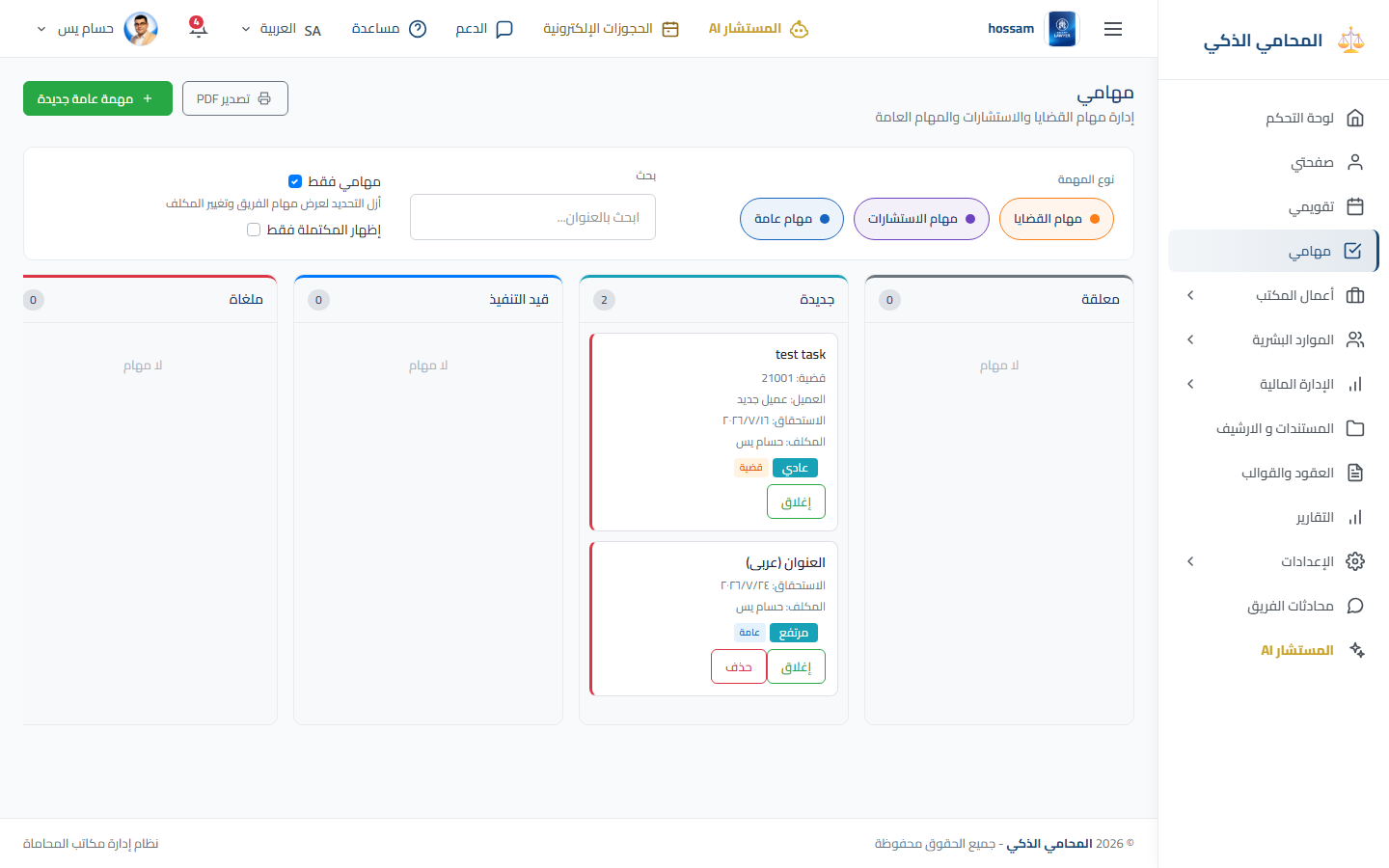
One board for case, consultation, and general office tasks.

When should you use this page?

Prioritize assigned work and keep task statuses current.

Steps

  1. 1

    Open My Tasks.

  2. 2

    Choose a task category.

  3. 3

    Filter by assignee, status, or date.

  4. 4

    Open a task and update its progress.

  5. 5

    Export the filtered list when needed.

Practical tips

  • Use “My tasks only” to focus on your assignments.
Arabic app screen
Arabic task board.
Arabic task board.
Case Management

Cases

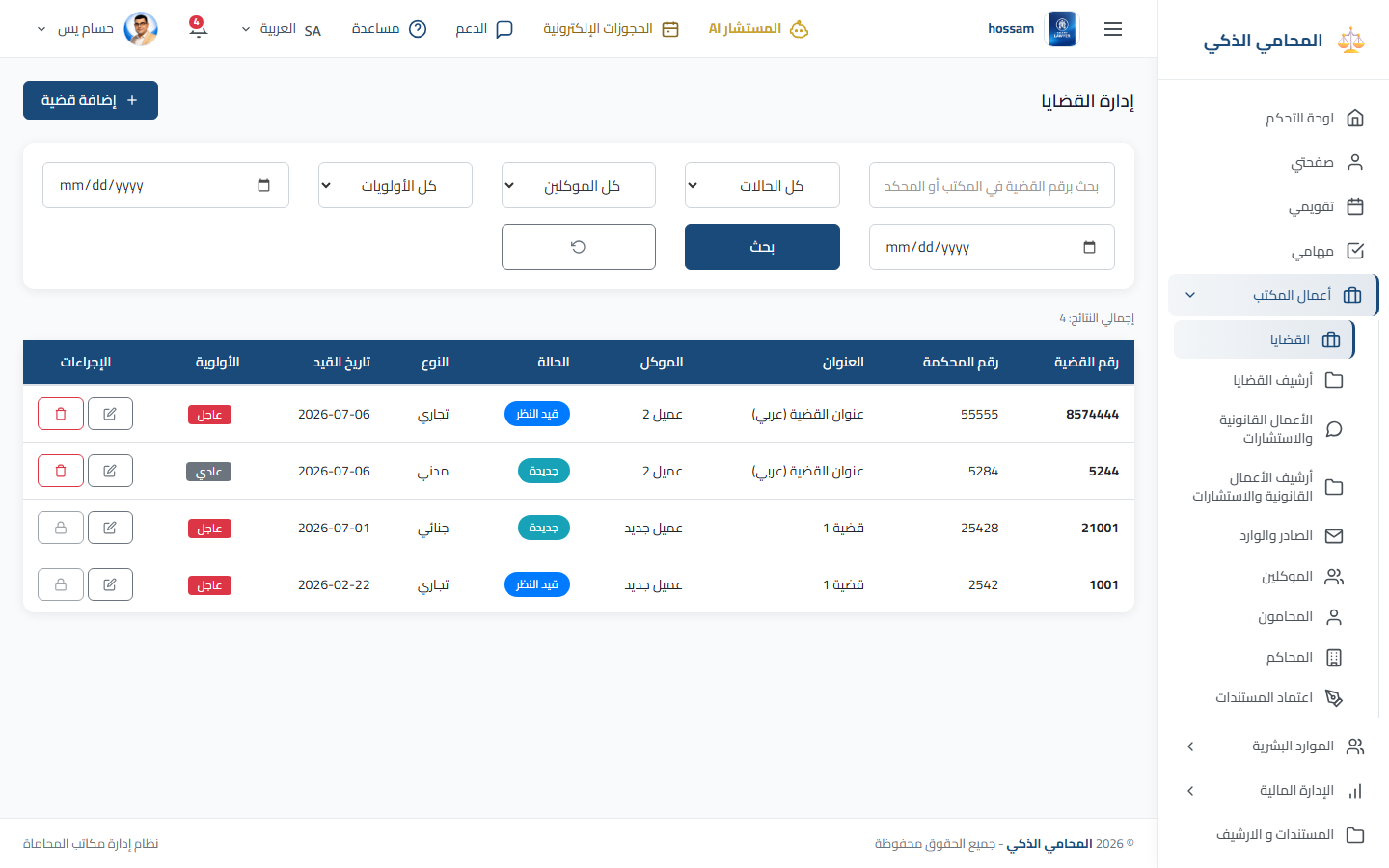
Create and maintain cases, parties, sessions, documents, procedures, judgments, tasks, and financial records.

When should you use this page?

Register a new case or continue work on an active case.

Steps

  1. 1

    Open Cases and search before creating a duplicate.

  2. 2

    Select Add Case.

  3. 3

    Enter the case number, client, court, lawyer, type, status, priority, and dates.

  4. 4

    Save the main record.

  5. 5

    Open the case details or Edit page to manage its related tabs.

  6. 6

    Save each tab after making changes.

Practical tips

  • Create required clients, courts, and lawyers before adding the case.
Arabic app screen
Arabic cases list.
Arabic cases list.
Case Management

Case Sessions

A firm-wide list of sessions across all cases, ordered from newest to oldest.

When should you use this page?

Review or filter case sessions and open the related case for full details.

Steps

  1. 1

    Open Sessions under Case Management.

  2. 2

    Filter by lawyer, date range, court, or office.

  3. 3

    Review the matching sessions.

  4. 4

    Select Open Case to go directly to the Sessions tab of the associated case.

Practical tips

  • Clear the filters to return to the complete list, including sessions from archived cases.
Case Management

Cases Archive

A separate list for archived legal cases that are no longer active.

When should you use this page?

Find an older case or restore it to active work.

Steps

  1. 1

    Open Cases Archive.

  2. 2

    Search by case number, client, court, or date.

  3. 3

    Open the required archived record.

  4. 4

    Restore or review it according to your permissions.

Practical tips

  • Archiving keeps the record and its related history.
Arabic app screen
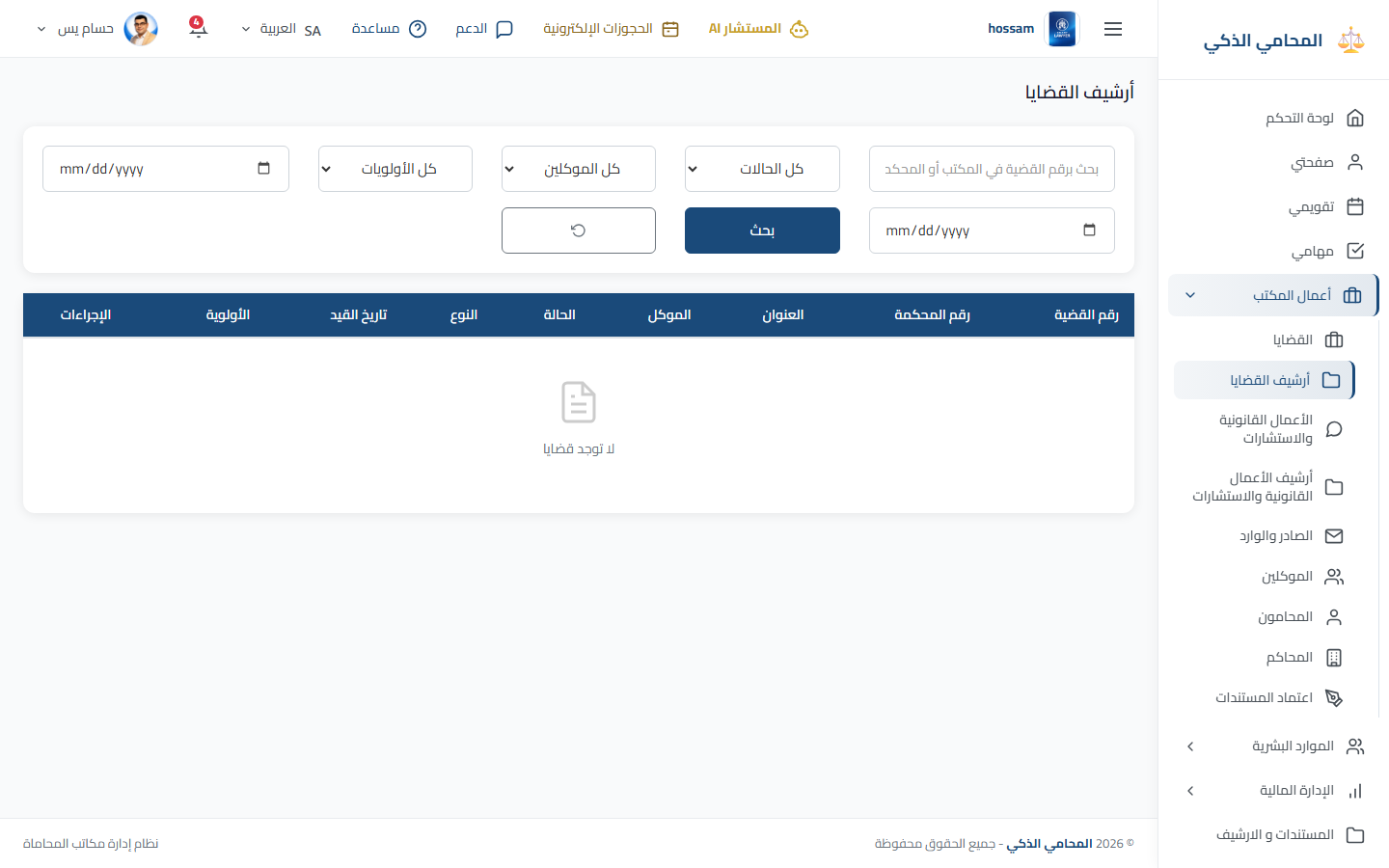
Arabic cases archive.
Office Work

Legal Work & Consultations

Manage legal consultations, responsible lawyers, clients, fees, documents, correspondence, and follow-up tasks.

When should you use this page?

Register legal work that is not yet managed as a case.

Steps

  1. 1

    Open Legal Work & Consultations.

  2. 2

    Search before adding a new record.

  3. 3

    Select Add Consultation.

  4. 4

    Enter the client, type, subject, lawyer, date, status, fee, and notes.

  5. 5

    Save the main record.

  6. 6

    Use its tabs for documents, correspondence, tasks, and costs.

Practical tips

  • Keep payment status and follow-up notes current.
Arabic app screen
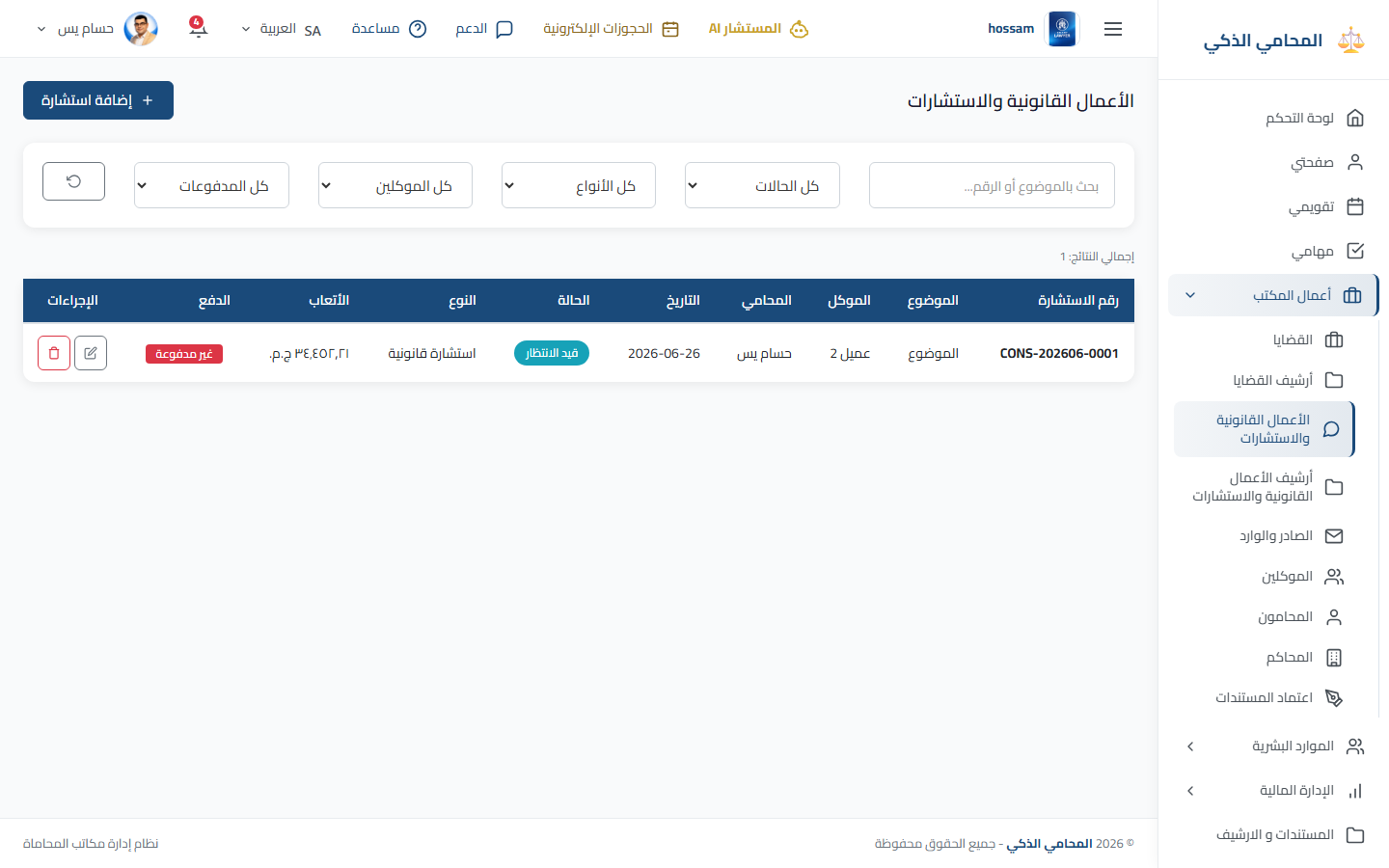
Arabic consultations list.
Office Work

Consultations Archive

Archived legal work and consultations kept for reference.

When should you use this page?

Review or restore completed or archived consultation records.

Steps

  1. 1

    Open the consultations archive.

  2. 2

    Apply search and status filters.

  3. 3

    Open the required record.

  4. 4

    Review its history or restore it when allowed.

Practical tips

  • Use the active list for current follow-up work.
Arabic app screen
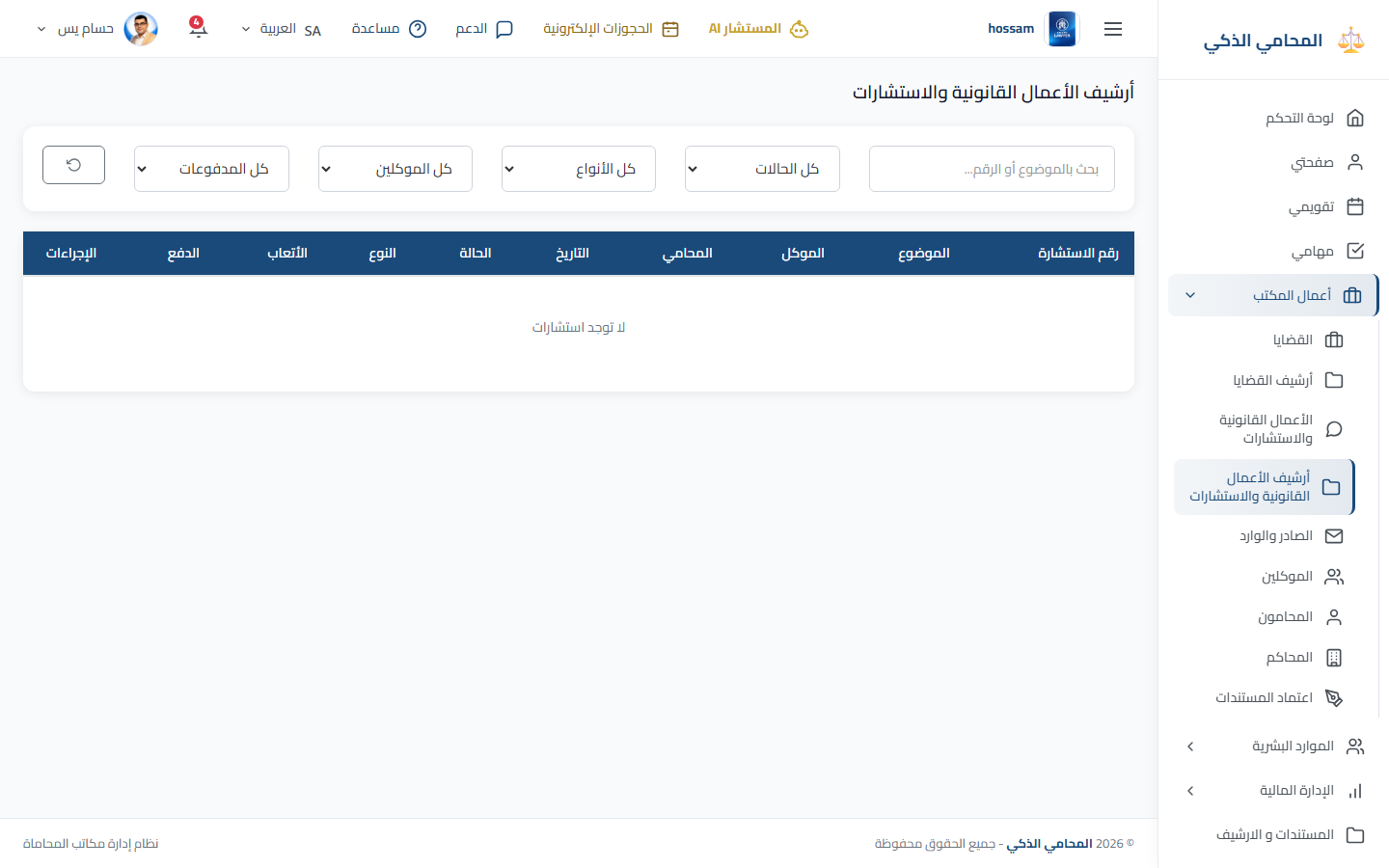
Arabic consultations archive.
Office Work

Incoming & Outgoing

Register office correspondence and link it to a case or consultation with its attachments.

When should you use this page?

Track an official letter, email, notice, or delivered document.

Steps

  1. 1

    Open Incoming & Outgoing.

  2. 2

    Select Add.

  3. 3

    Choose incoming or outgoing and enter number, date, subject, and party.

  4. 4

    Link a case or consultation when relevant.

  5. 5

    Attach the file and save.

  6. 6

    Use search to edit or download it later.

Practical tips

  • Use a consistent correspondence number for easier searching.
Arabic app screen
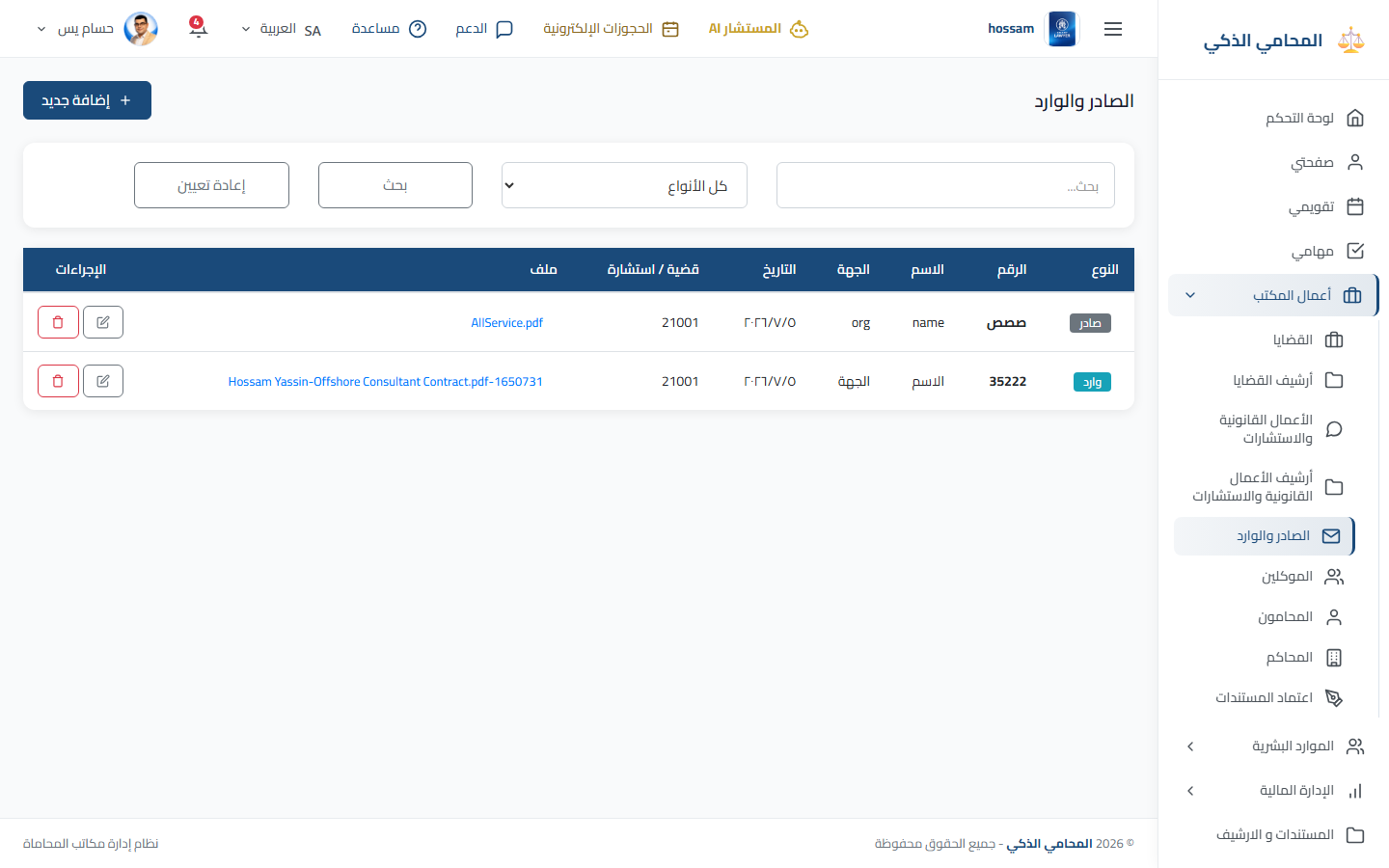
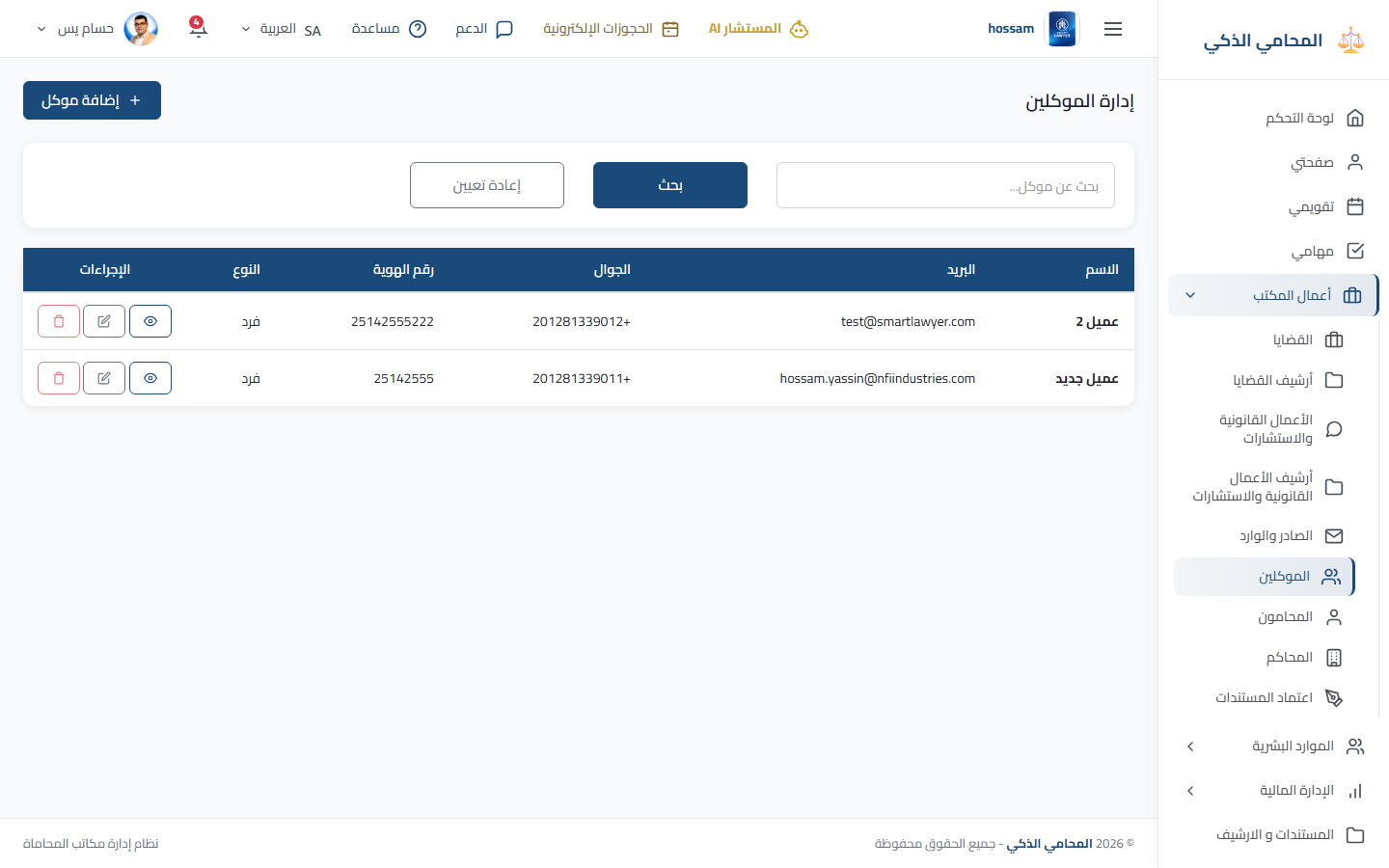
Arabic correspondence list.
Office Work

Clients

Maintain client identity, contacts, addresses, legal work, documents, and account activity.

When should you use this page?

Add a client or review everything connected to an existing client.

Steps

  1. 1

    Open Clients and search for the person or company.

  2. 2

    Select Add Client if no record exists.

  3. 3

    Enter identity, contact, address, and classification data.

  4. 4

    Save the client.

  5. 5

    Open View to review linked cases, consultations, documents, and financial activity.

  6. 6

    Use Edit when the client information changes.

Practical tips

  • Search by phone or identity number before creating a new client.
Arabic app screen
Arabic clients list.
Office Work

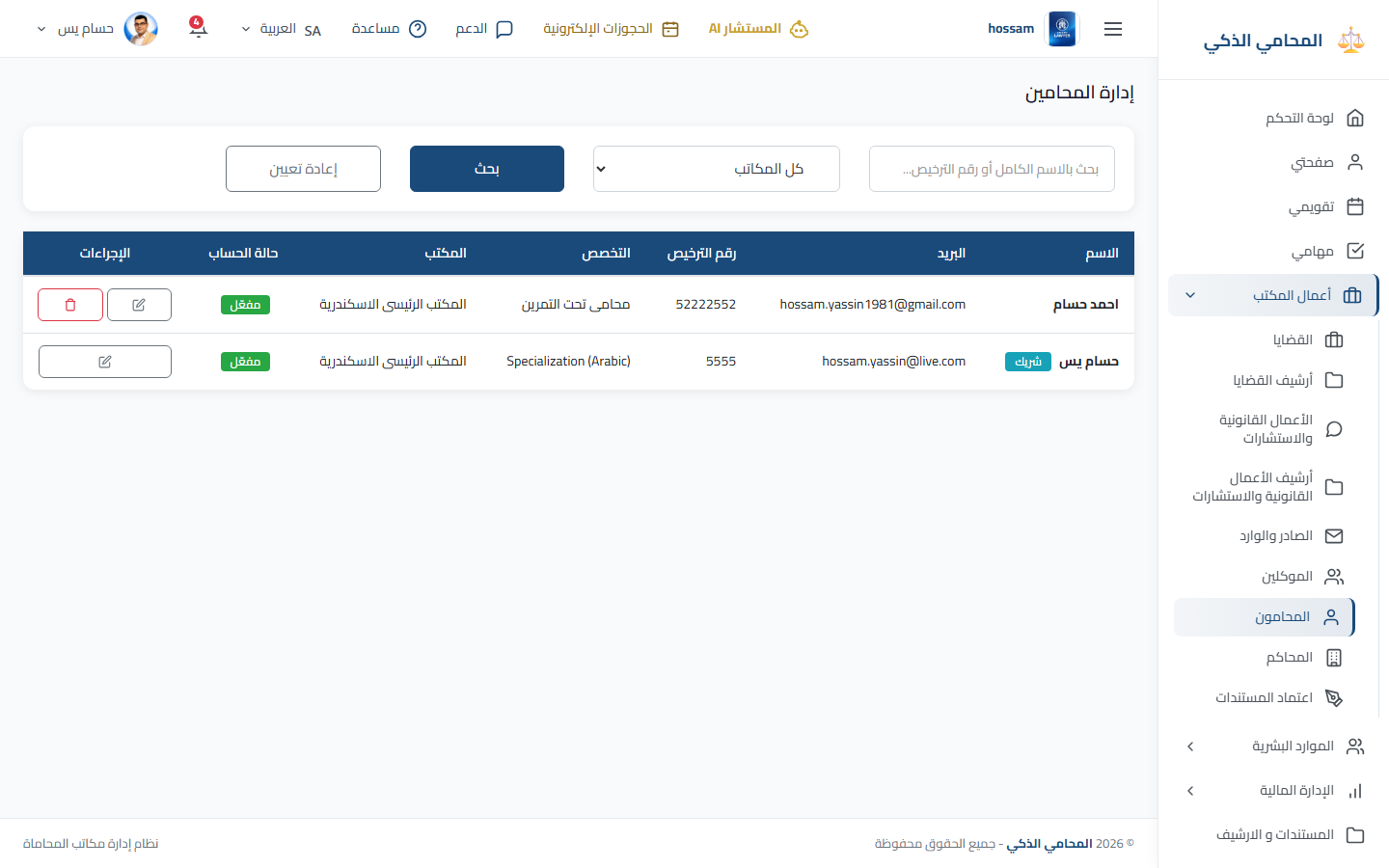
Lawyers

Manage lawyer profiles used for assignments, sessions, tasks, and reporting.

When should you use this page?

Add a lawyer or update professional and contact information.

Steps

  1. 1

    Open Lawyers.

  2. 2

    Search before adding a record.

  3. 3

    Select Add Lawyer.

  4. 4

    Enter account, professional, contact, and office data.

  5. 5

    Save and confirm the lawyer appears in assignment lists.

  6. 6

    Use Edit for later changes.

Practical tips

  • Only assign access needed for the lawyer’s role.
Arabic app screen
Arabic lawyers list.
Office Work

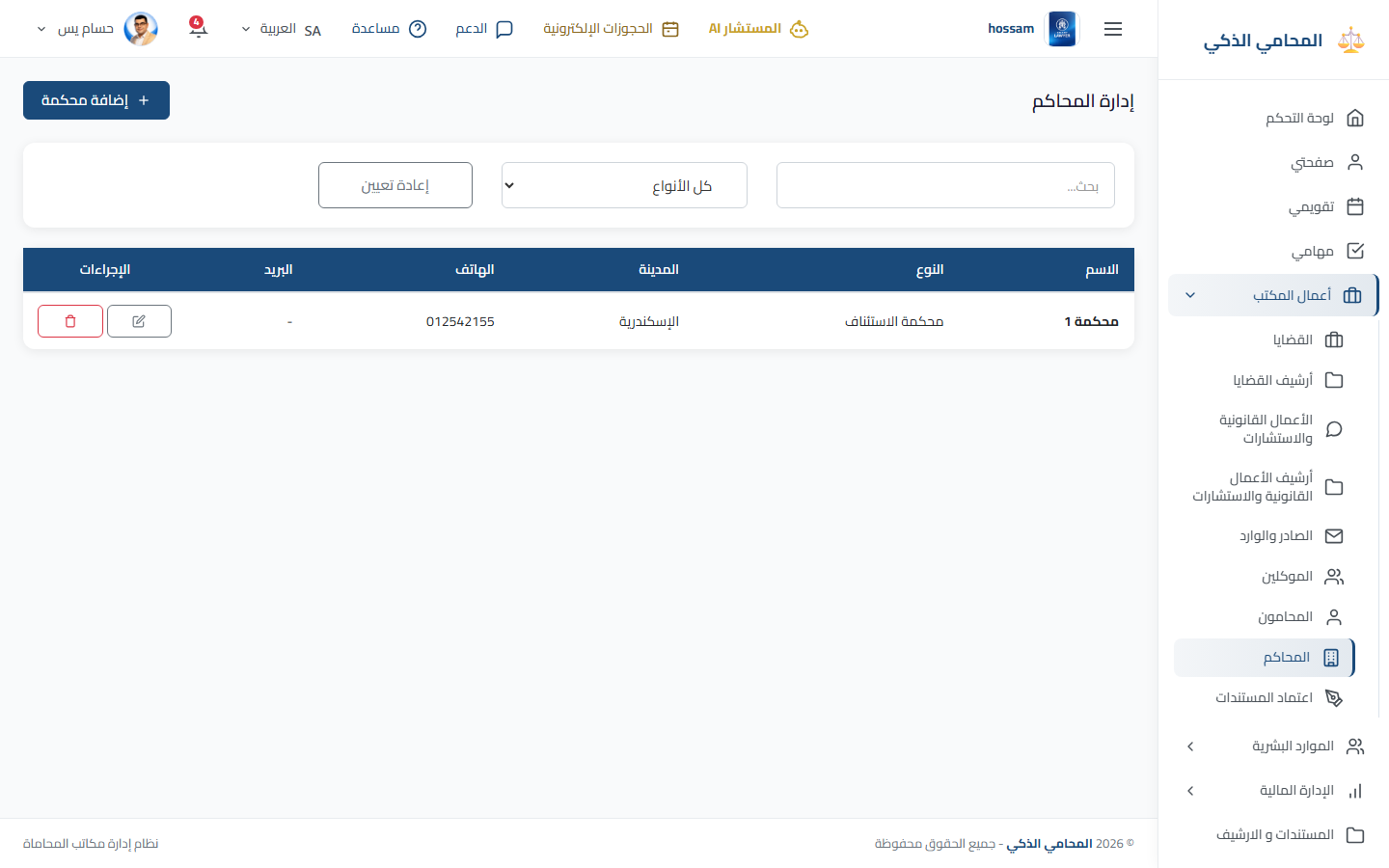
Courts

Maintain the courts directory used when registering cases and sessions.

When should you use this page?

Add or correct a court before selecting it in legal work.

Steps

  1. 1

    Open Courts.

  2. 2

    Search by court name or type.

  3. 3

    Select Add Court.

  4. 4

    Enter the Arabic and English names, type, location, and contact details.

  5. 5

    Save, then edit the record when information changes.

Practical tips

  • Avoid duplicate court records with slightly different spelling.
Arabic app screen
Arabic courts directory.
Office Work

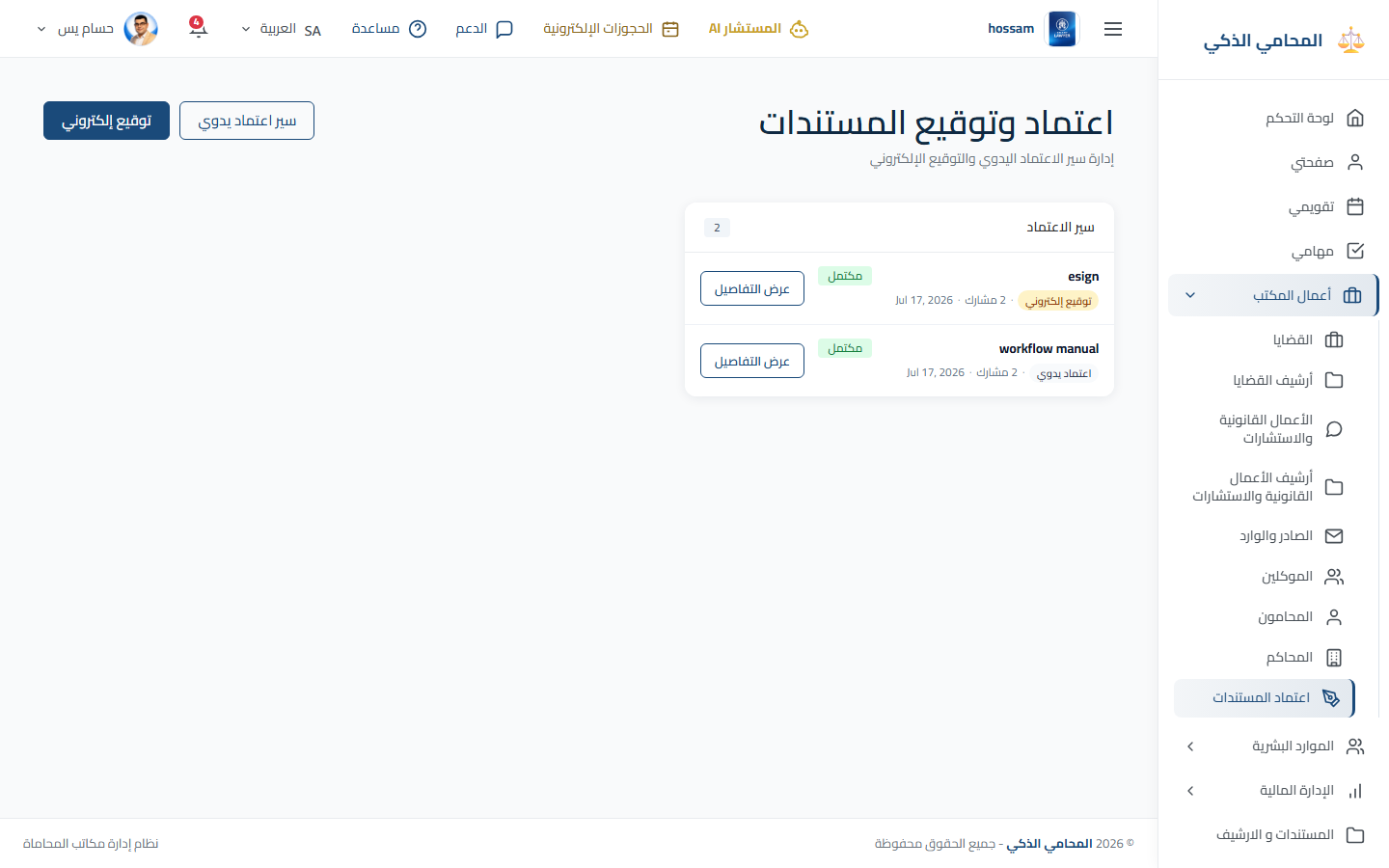
Document Approvals

Create manual approval or electronic-signature workflows and monitor every participant.

When should you use this page?

A document must be reviewed or signed in an ordered workflow.

Steps

  1. 1

    Open Document Approvals.

  2. 2

    Choose manual approval or electronic signature.

  3. 3

    Upload the document.

  4. 4

    Add participants in the required order.

  5. 5

    Review the workflow details and start it.

  6. 6

    Monitor status and download the final document when complete.

Practical tips

  • Verify participant email addresses before starting an e-sign workflow.
Arabic app screen
Arabic document approval workflows.
Human Resources

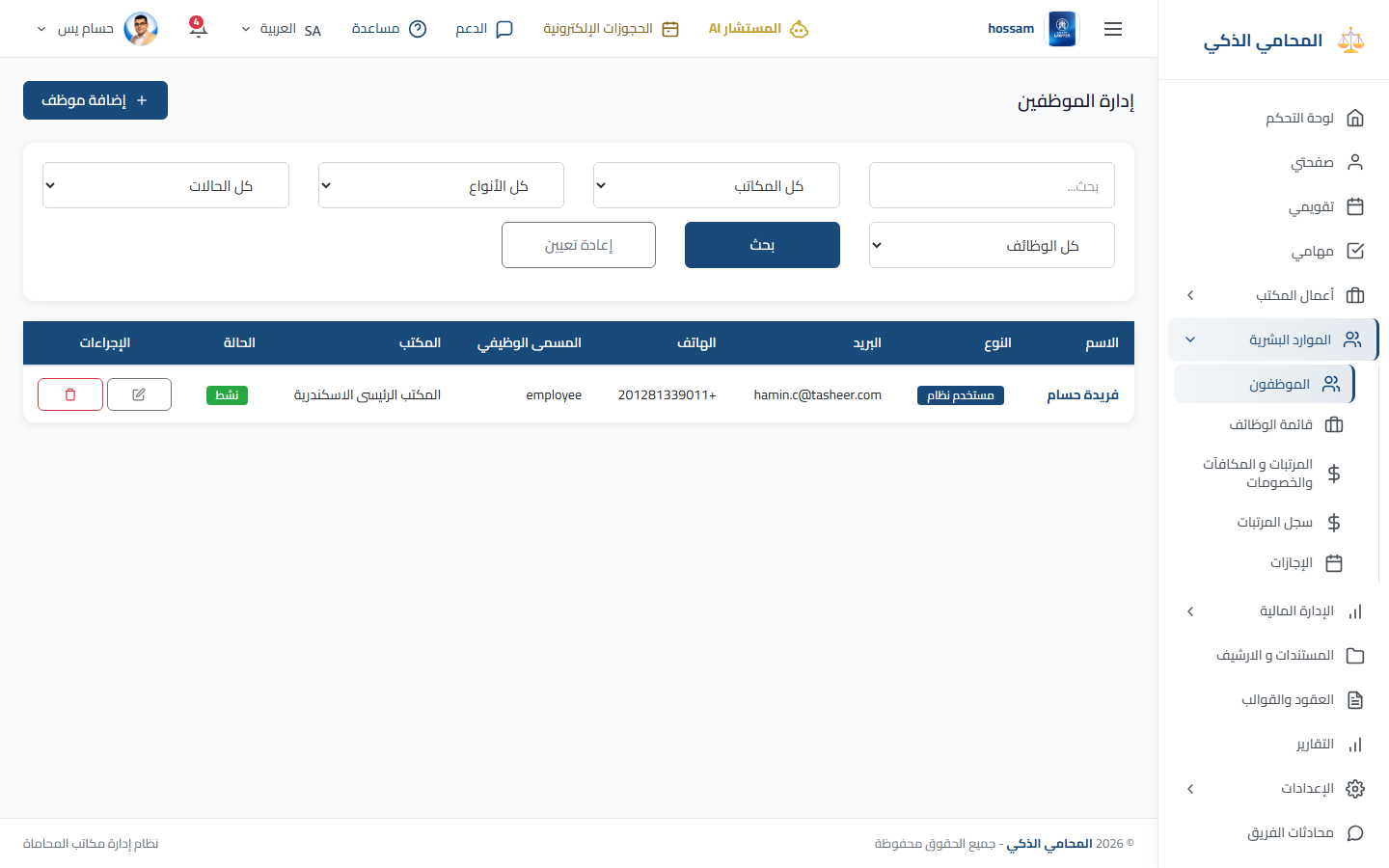
Employees

Manage employee accounts, jobs, compensation, contact details, and employment status.

When should you use this page?

Onboard an employee or update employment details.

Steps

  1. 1

    Open Employees and search existing records.

  2. 2

    Select Add Employee.

  3. 3

    Enter account, personal, job, office, and compensation data.

  4. 4

    Save the employee.

  5. 5

    Open the employee details to review related HR information.

  6. 6

    Use Edit for changes.

Practical tips

  • Create the job title before assigning it to an employee.
Arabic app screen
Arabic employees list.
Human Resources

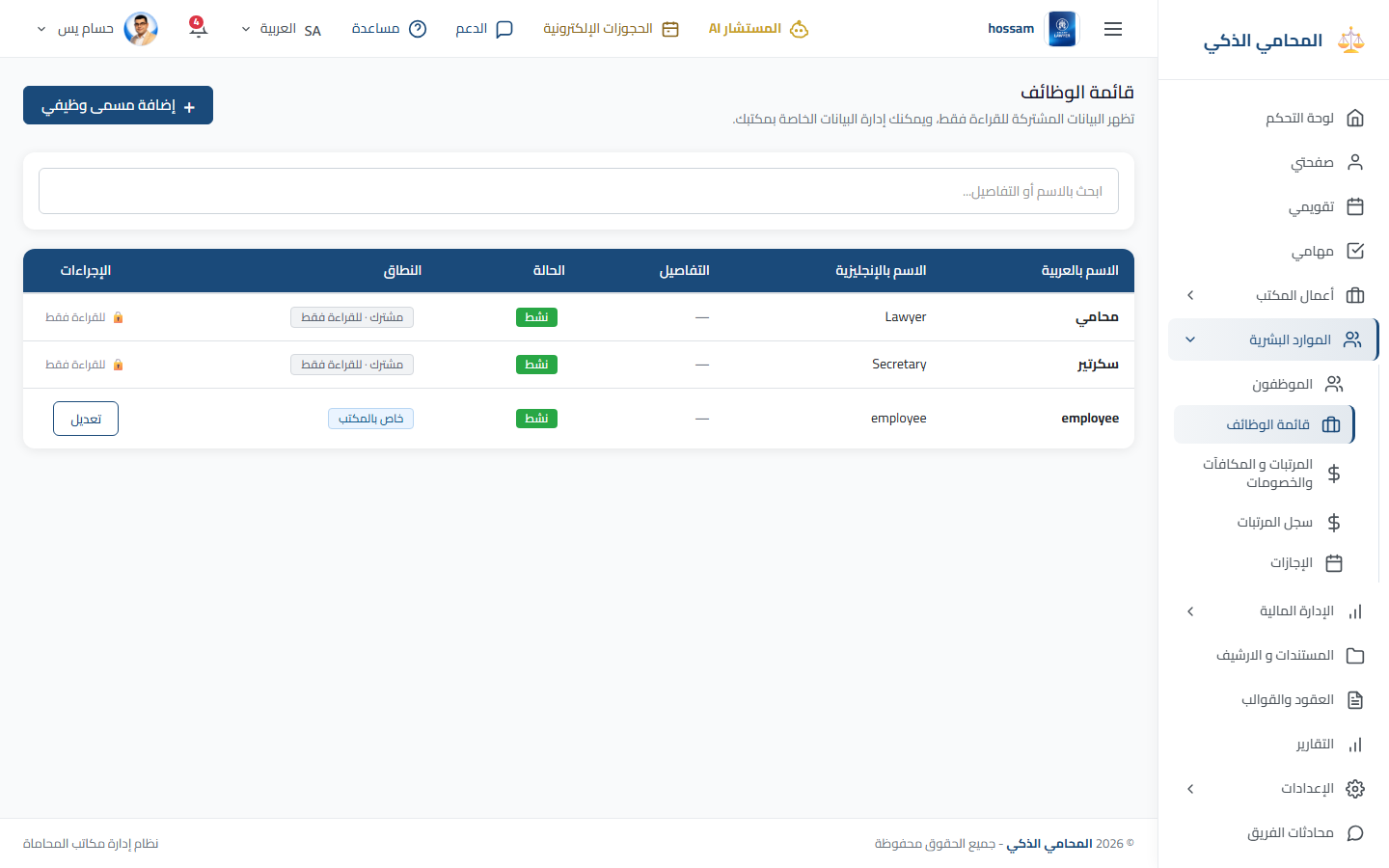
Job Titles

The list of job titles available for employee records.

When should you use this page?

Add a new role name or correct an existing title.

Steps

  1. 1

    Open Job Titles.

  2. 2

    Search for the title.

  3. 3

    Select Add if it does not exist.

  4. 4

    Enter Arabic and English names.

  5. 5

    Save or edit the title.

Practical tips

  • Use clear titles that can be reused across employees.
Arabic app screen
Arabic job titles settings.
Human Resources

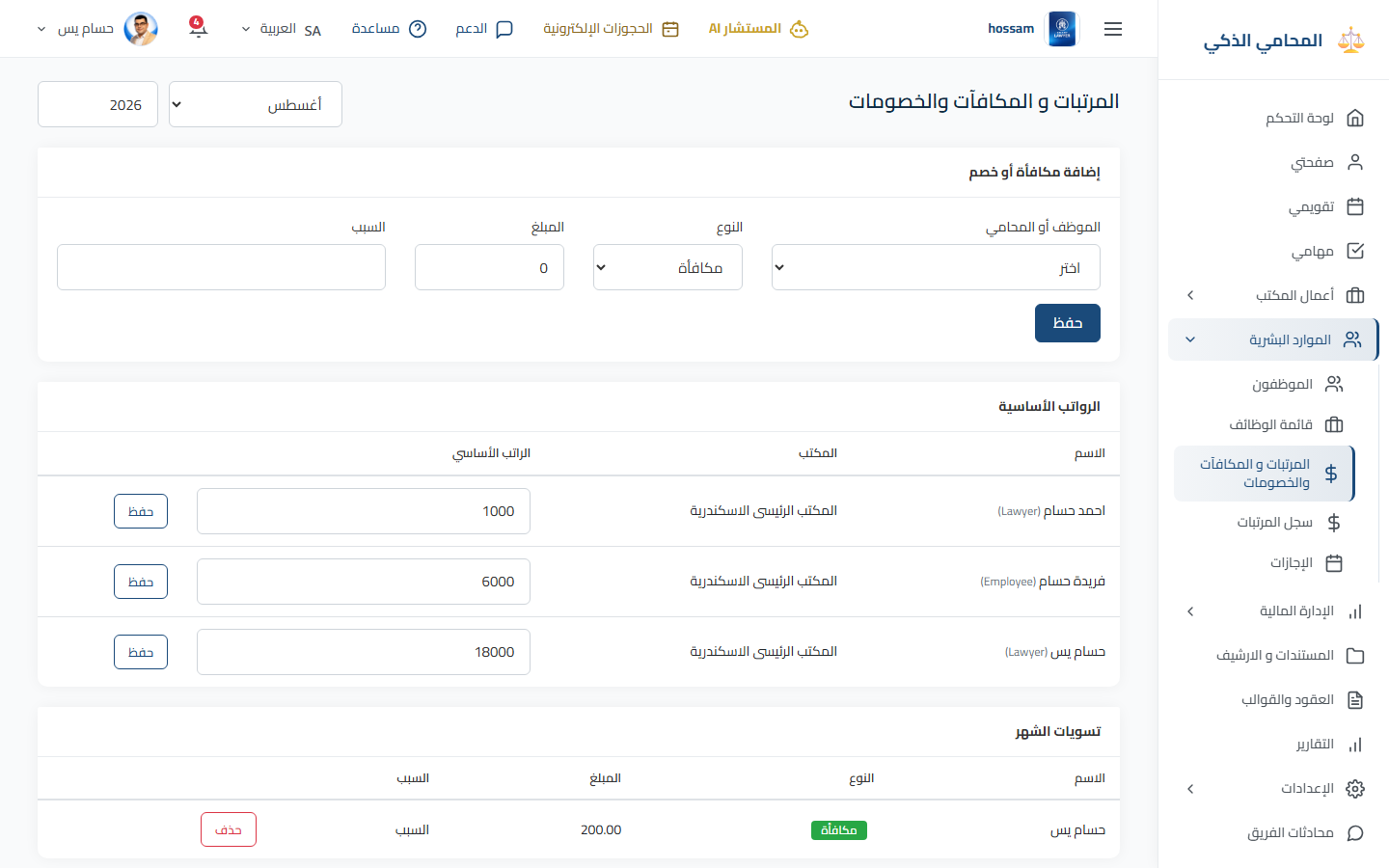
Salaries, Rewards & Deductions

Record compensation adjustments that affect an employee’s salary period.

When should you use this page?

Add a reward, deduction, allowance, or salary adjustment.

Steps

  1. 1

    Open Salaries, Rewards & Deductions.

  2. 2

    Choose the employee and period.

  3. 3

    Select the adjustment type.

  4. 4

    Enter the amount, date, and reason.

  5. 5

    Save and review it before salary registration.

Practical tips

  • This page requires financial permission.
Arabic app screen
Arabic payroll adjustments.
Human Resources

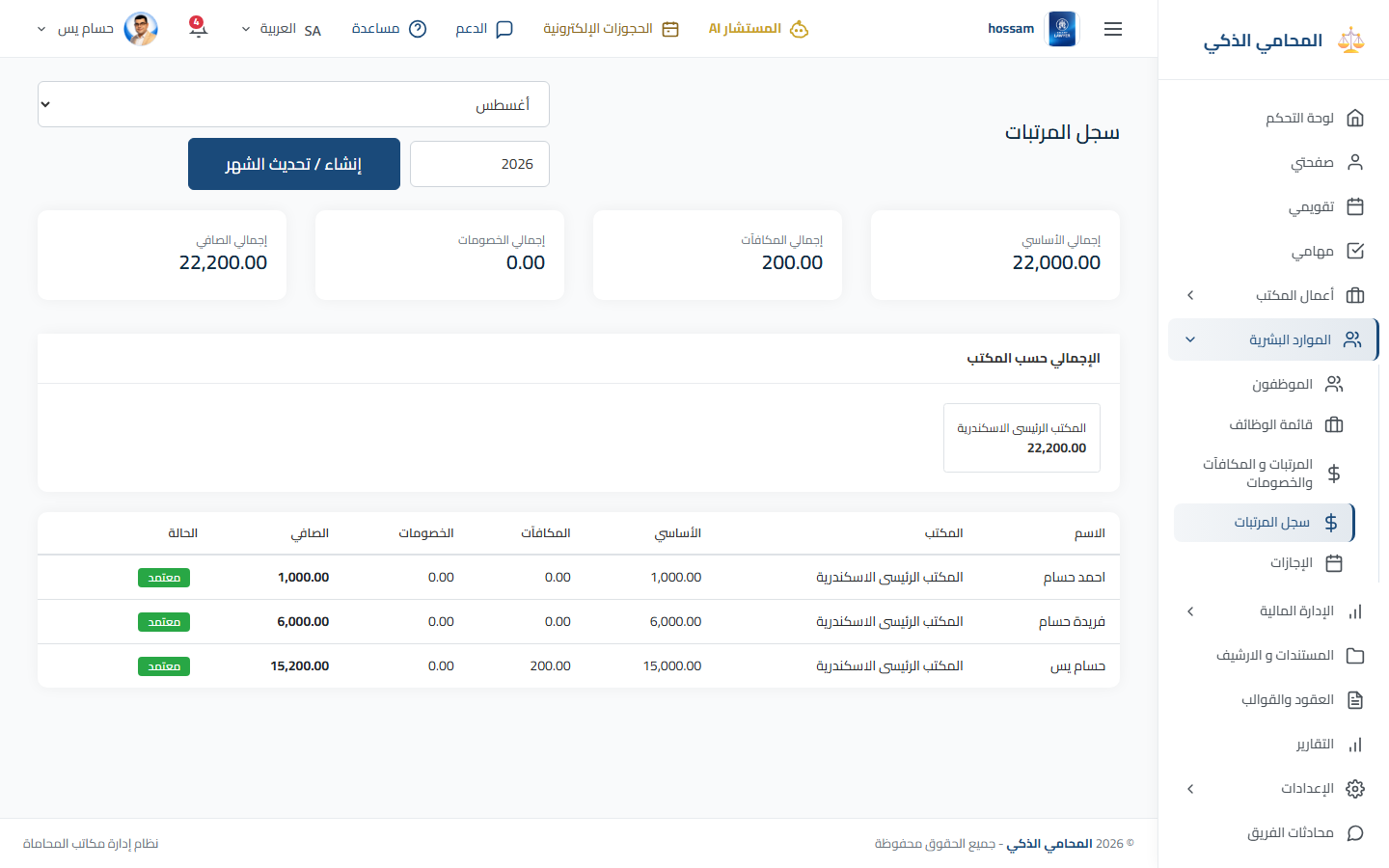
Salary Register

Prepare and review employee salary records by payroll period.

When should you use this page?

Calculate, confirm, or review payroll for a month.

Steps

  1. 1

    Open Salary Register.

  2. 2

    Select the payroll month and office.

  3. 3

    Generate or load salary rows.

  4. 4

    Review base salary and all adjustments.

  5. 5

    Confirm the final amounts and save.

Practical tips

  • Review adjustments before finalizing payroll.
Arabic app screen
Arabic salary register.
Human Resources

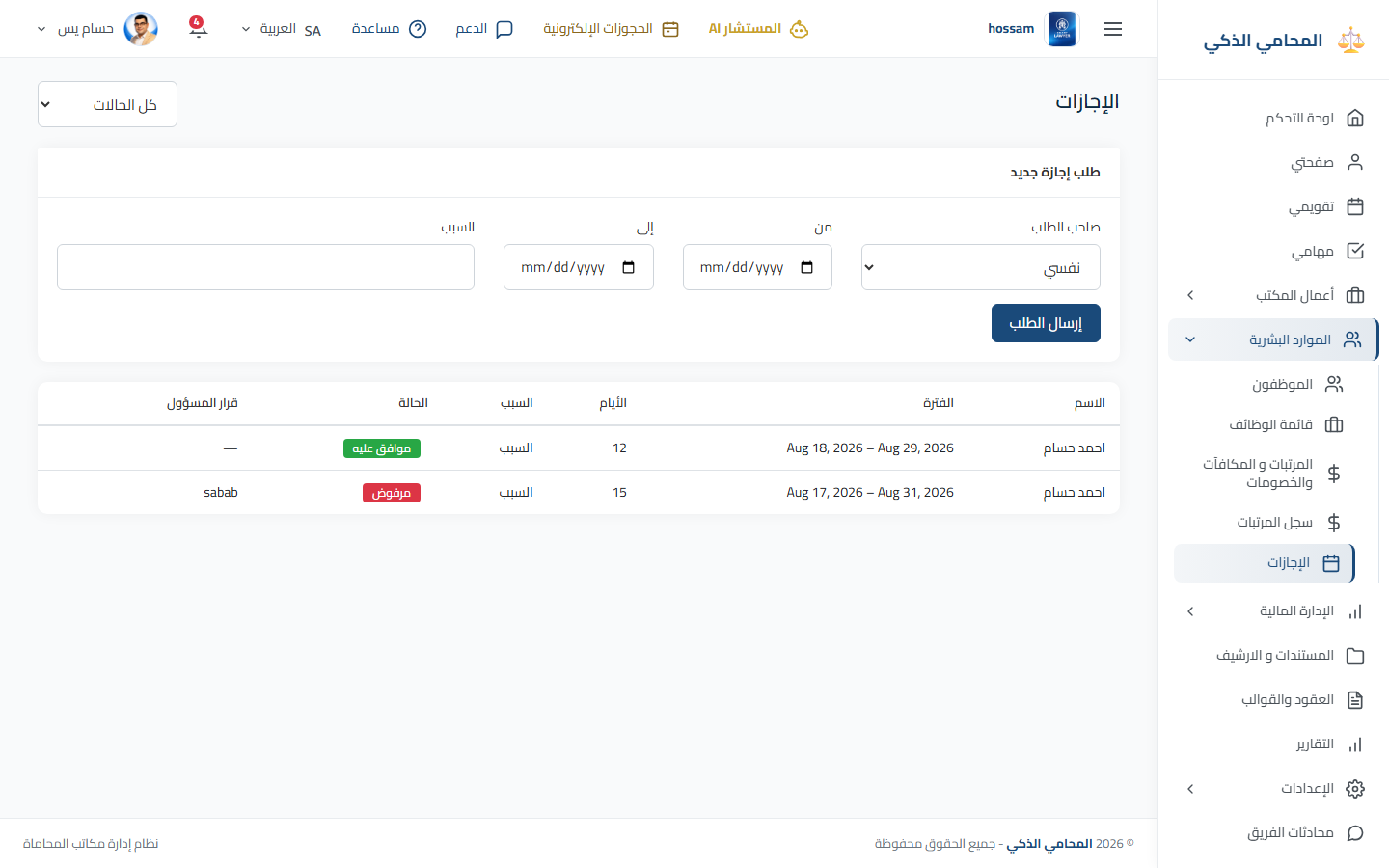
Vacations

Submit and track employee vacation requests and approval status.

When should you use this page?

Request leave or review your submitted requests.

Steps

  1. 1

    Open Vacations.

  2. 2

    Select New Request.

  3. 3

    Choose leave type and start/end dates.

  4. 4

    Add the reason and any attachment.

  5. 5

    Submit and monitor the approval status.

Practical tips

  • Check date overlap before submitting a request.
Arabic app screen
Arabic vacations page.
Human Resources

My Approvals

Review vacation requests that require tenant-admin approval.

When should you use this page?

Approve or reject pending employee leave requests.

Steps

  1. 1

    Open My Approvals from the profile menu.

  2. 2

    Review pending requests and their dates.

  3. 3

    Open a request for full details.

  4. 4

    Approve or reject it and add a note when needed.

Practical tips

  • This page is available to tenant administrators.
Arabic app screen
Arabic vacation approvals.
Financial Management

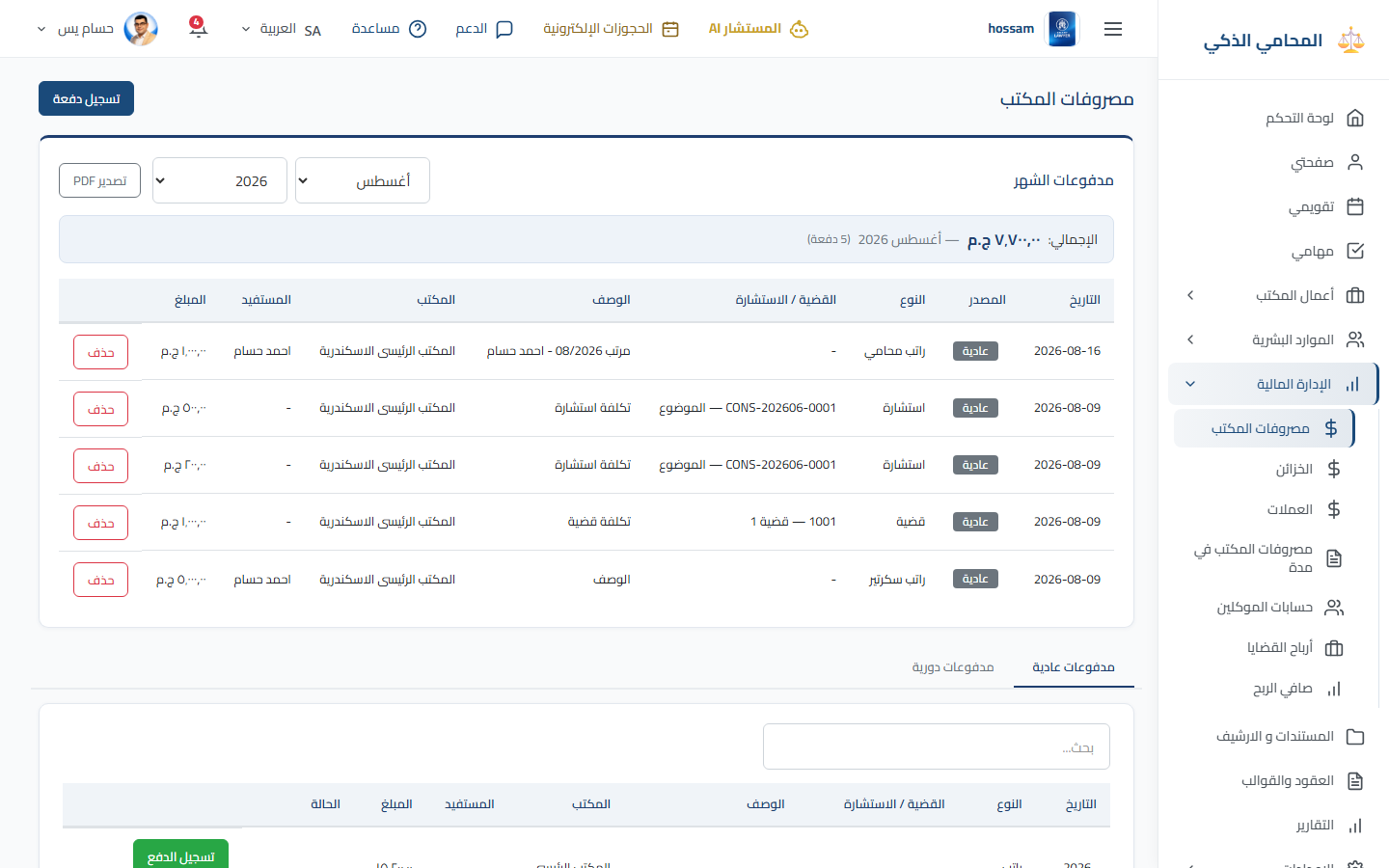
Office Expenses

Record regular and recurring office expense payments and review totals by period.

When should you use this page?

Pay or review an office expense.

Steps

  1. 1

    Open Office Expenses.

  2. 2

    Choose month, year, and office.

  3. 3

    Select Record Payment.

  4. 4

    Enter date, category, payee, treasury, amount, and notes.

  5. 5

    Save and verify the totals.

  6. 6

    Export the filtered report when needed.

Practical tips

  • Choose the correct treasury so its balance stays accurate.
Arabic app screen
Arabic office expenses.
Financial Management

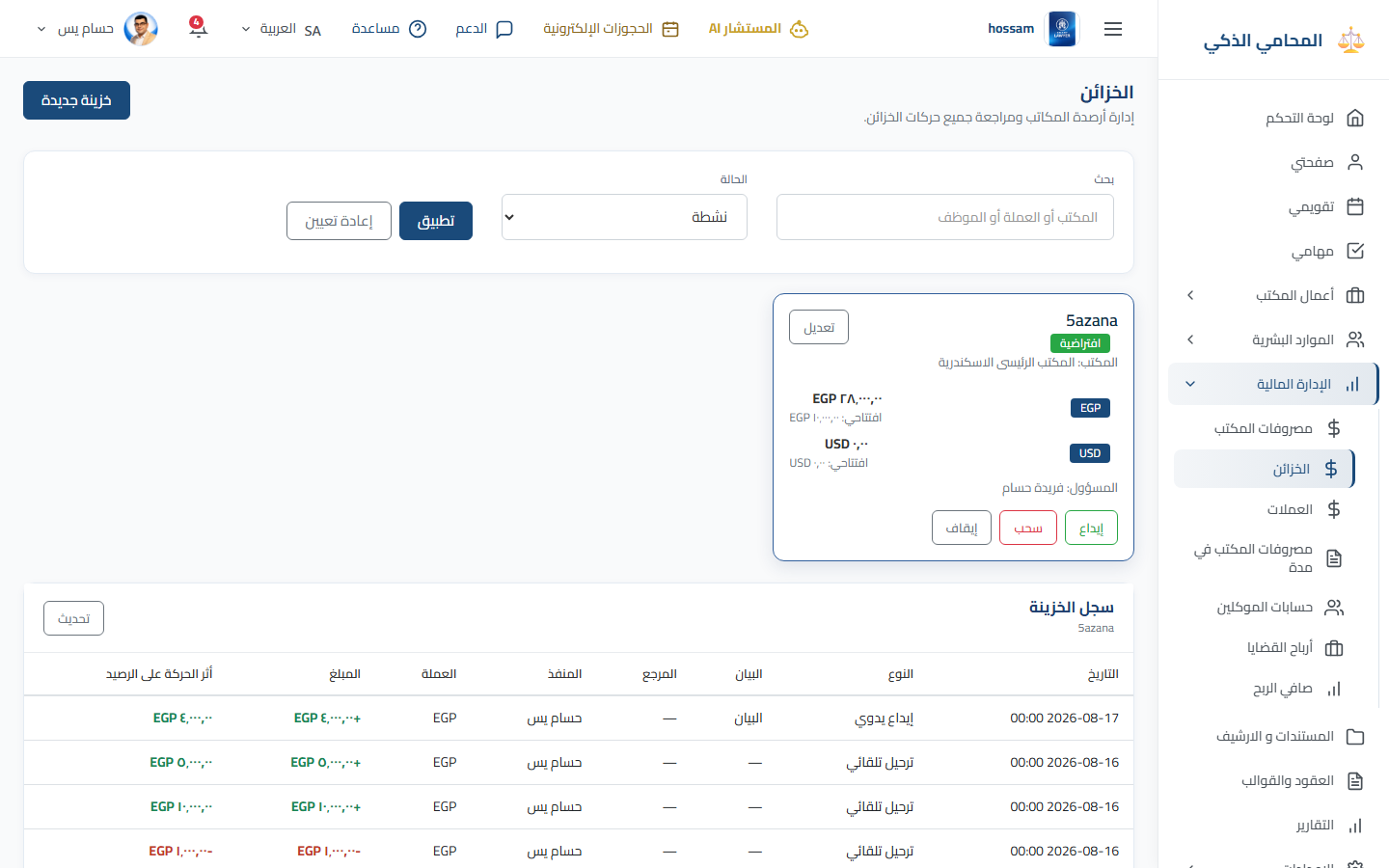
Treasuries

Manage cash and bank treasuries, balances, deposits, withdrawals, and transfers.

When should you use this page?

Create a treasury or record movement between office funds.

Steps

  1. 1

    Open Treasuries.

  2. 2

    Select or create a treasury.

  3. 3

    Review its current balance and entries.

  4. 4

    Choose deposit, withdrawal, or transfer.

  5. 5

    Enter amount, date, reference, and notes.

  6. 6

    Save and verify the resulting balance.

Practical tips

  • Use transfers instead of separate withdrawal/deposit entries between treasuries.
Arabic app screen
Arabic treasuries page.
Financial Management

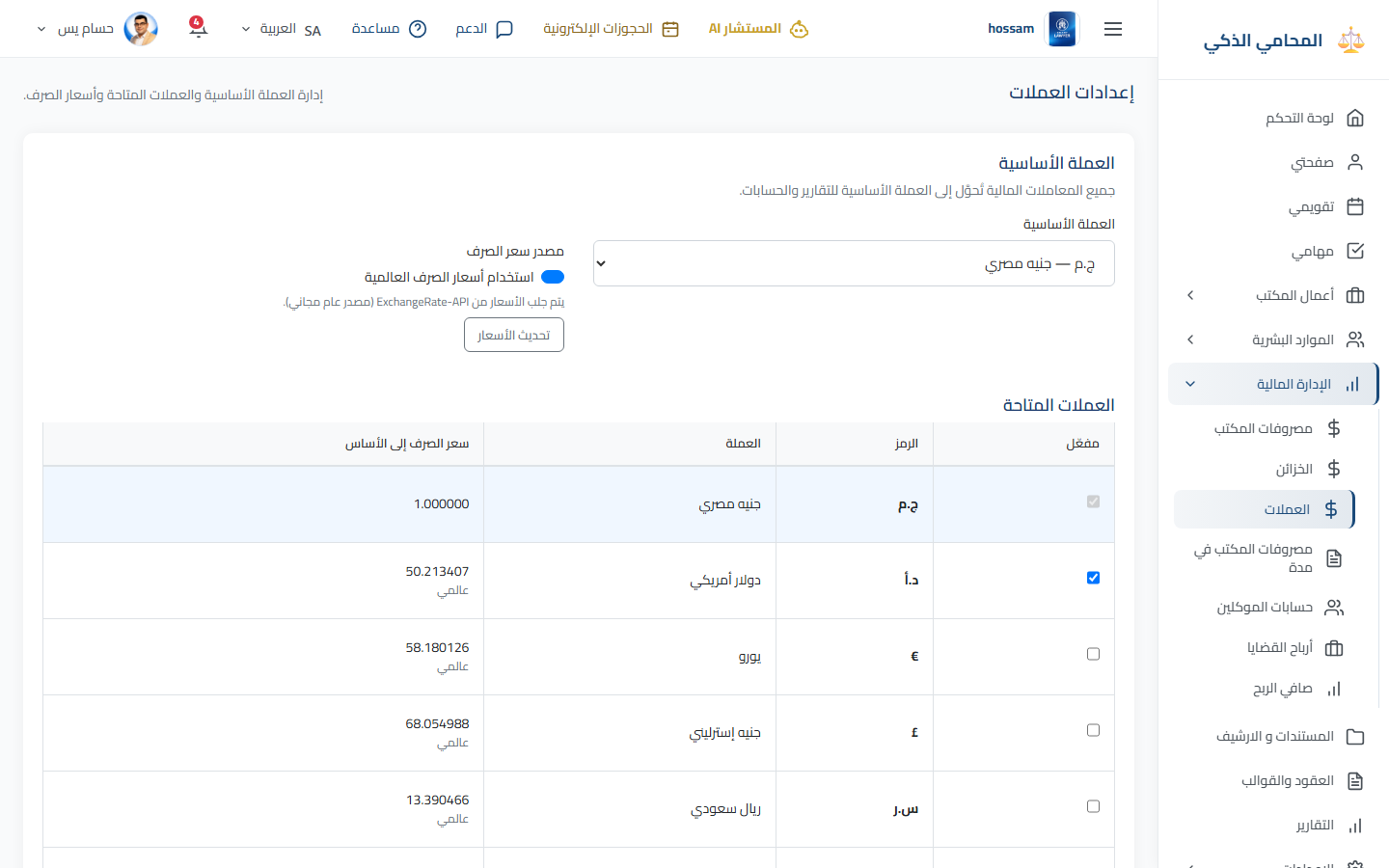
Currencies

Choose the base currency and configure additional currencies and exchange rates.

When should you use this page?

The office records financial activity in more than one currency.

Steps

  1. 1

    Open Currencies.

  2. 2

    Confirm the base reporting currency.

  3. 3

    Enable required additional currencies.

  4. 4

    Choose manual or global rates.

  5. 5

    Enter or refresh exchange rates.

  6. 6

    Save the configuration.

Practical tips

  • Changing the base currency can affect financial reporting.
Arabic app screen
Arabic currency settings.
Financial Management

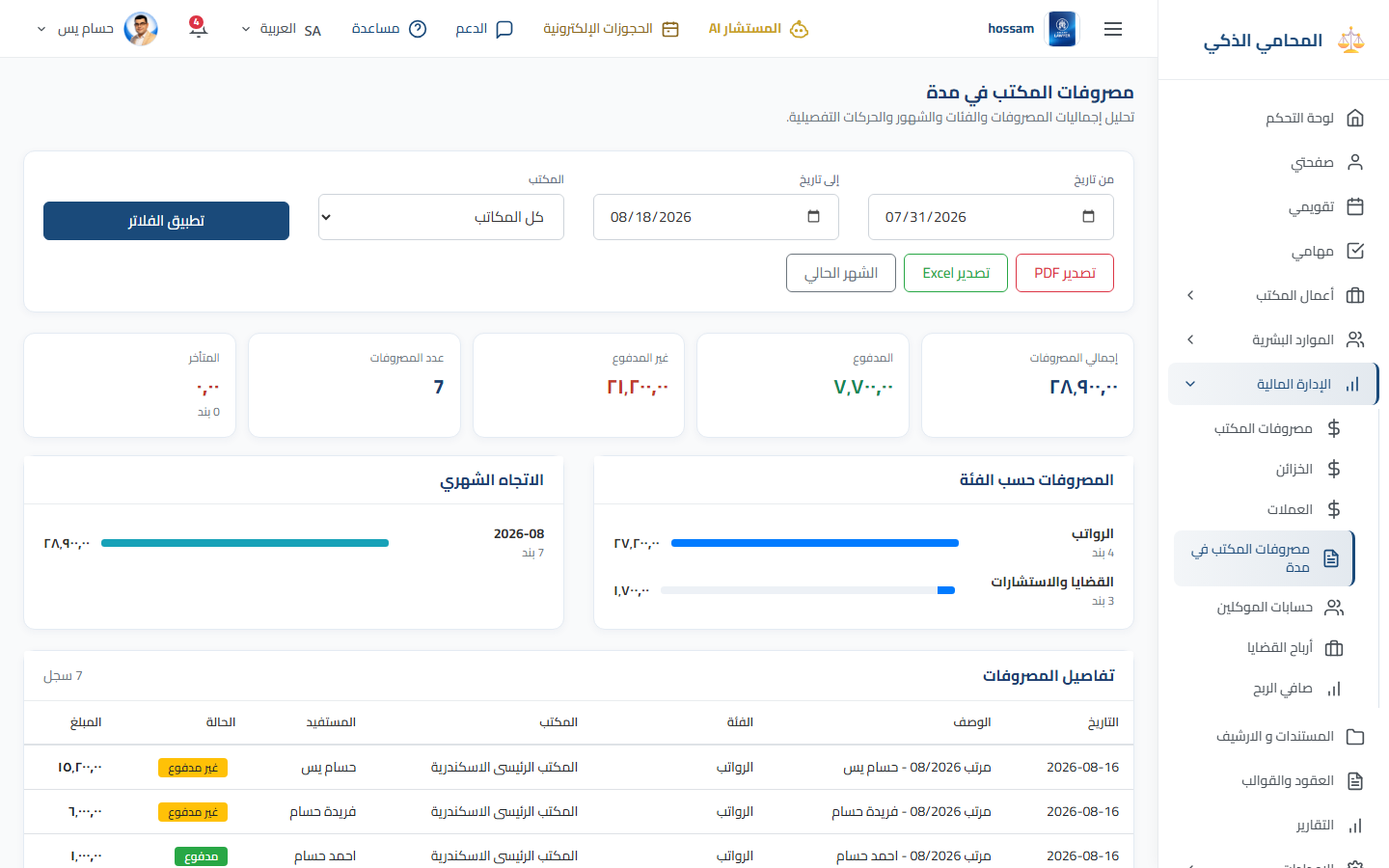
Office Expenses by Period

Analyze office expenses for a selected period, office, category, or currency.

When should you use this page?

Compare costs or prepare an expense report.

Steps

  1. 1

    Open Office Expenses by Period.

  2. 2

    Set the start and end dates.

  3. 3

    Apply office, category, and currency filters.

  4. 4

    Review totals and detailed rows.

  5. 5

    Print or export the result.

Practical tips

  • Use the same currency when comparing periods.
Arabic app screen
Arabic office expense report.
Financial Management

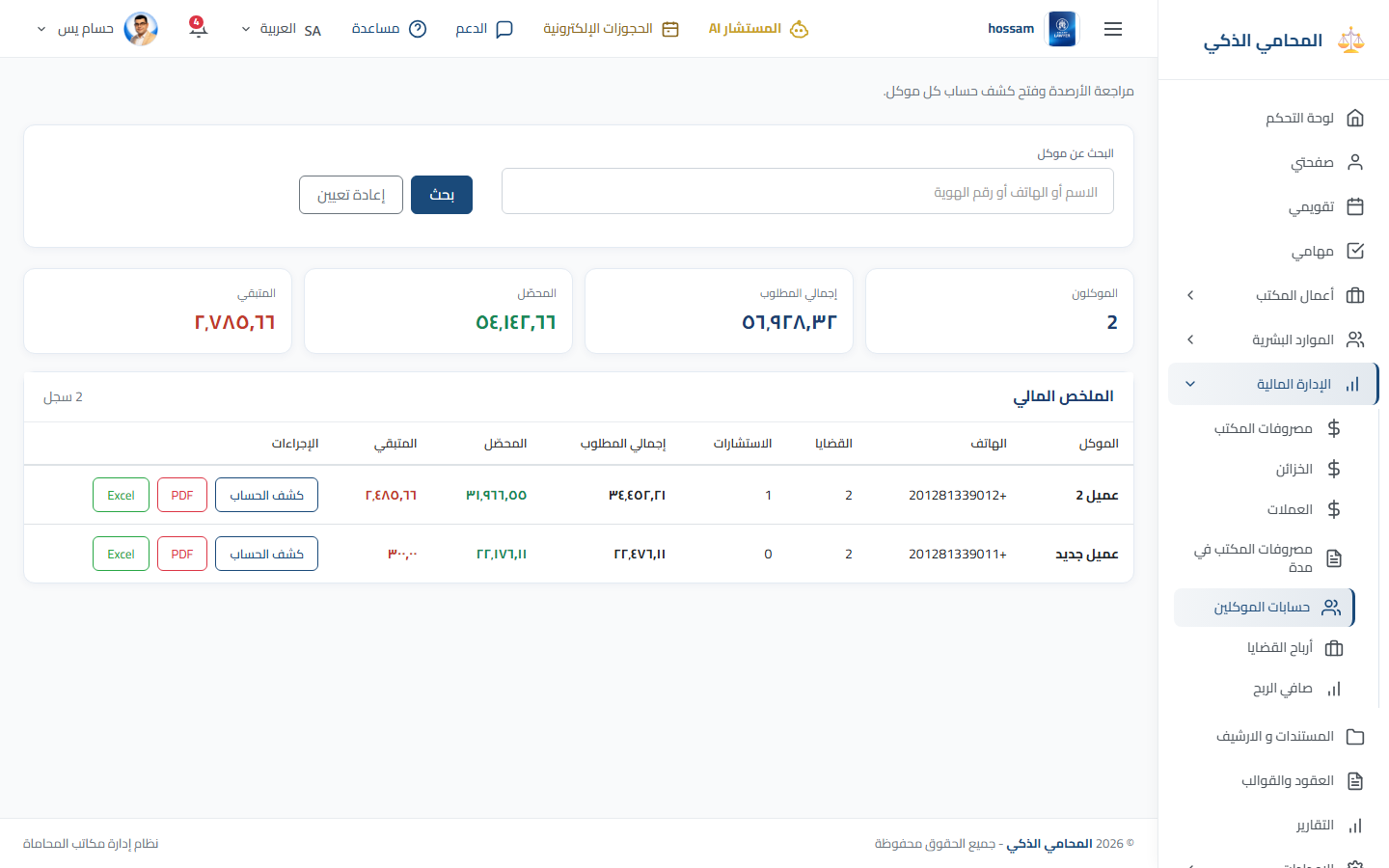
Client Accounts

Review client balances, revenues, payments, costs, and account statements.

When should you use this page?

Check what a client has paid or still owes.

Steps

  1. 1

    Open Client Accounts.

  2. 2

    Search for the client.

  3. 3

    Review balance and summary values.

  4. 4

    Open the account details.

  5. 5

    Filter transactions by date or type.

  6. 6

    Print or export the statement.

Practical tips

  • Record payments against the correct client and legal work.
Arabic app screen
Arabic client accounts.
Financial Management

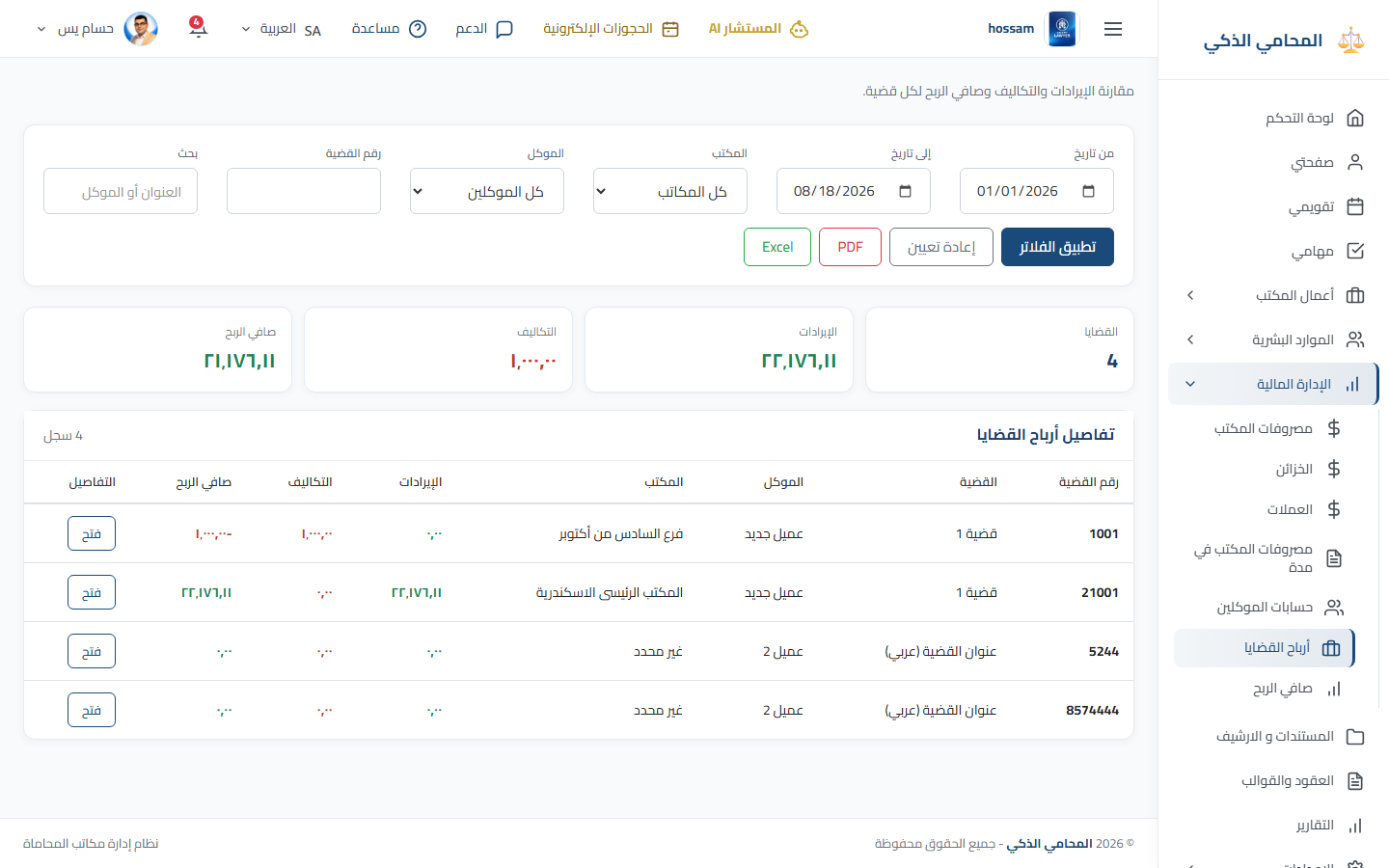
Case Profits

Compare case revenues and costs to understand profitability.

When should you use this page?

Evaluate the financial result of one or more cases.

Steps

  1. 1

    Open Case Profits.

  2. 2

    Choose date, client, lawyer, status, or office filters.

  3. 3

    Review revenue, cost, and profit columns.

  4. 4

    Open a case when details need investigation.

  5. 5

    Export the result for review.

Practical tips

  • Profit is only accurate when all case revenues and costs are recorded.
Arabic app screen
Arabic case profitability report.
Financial Management

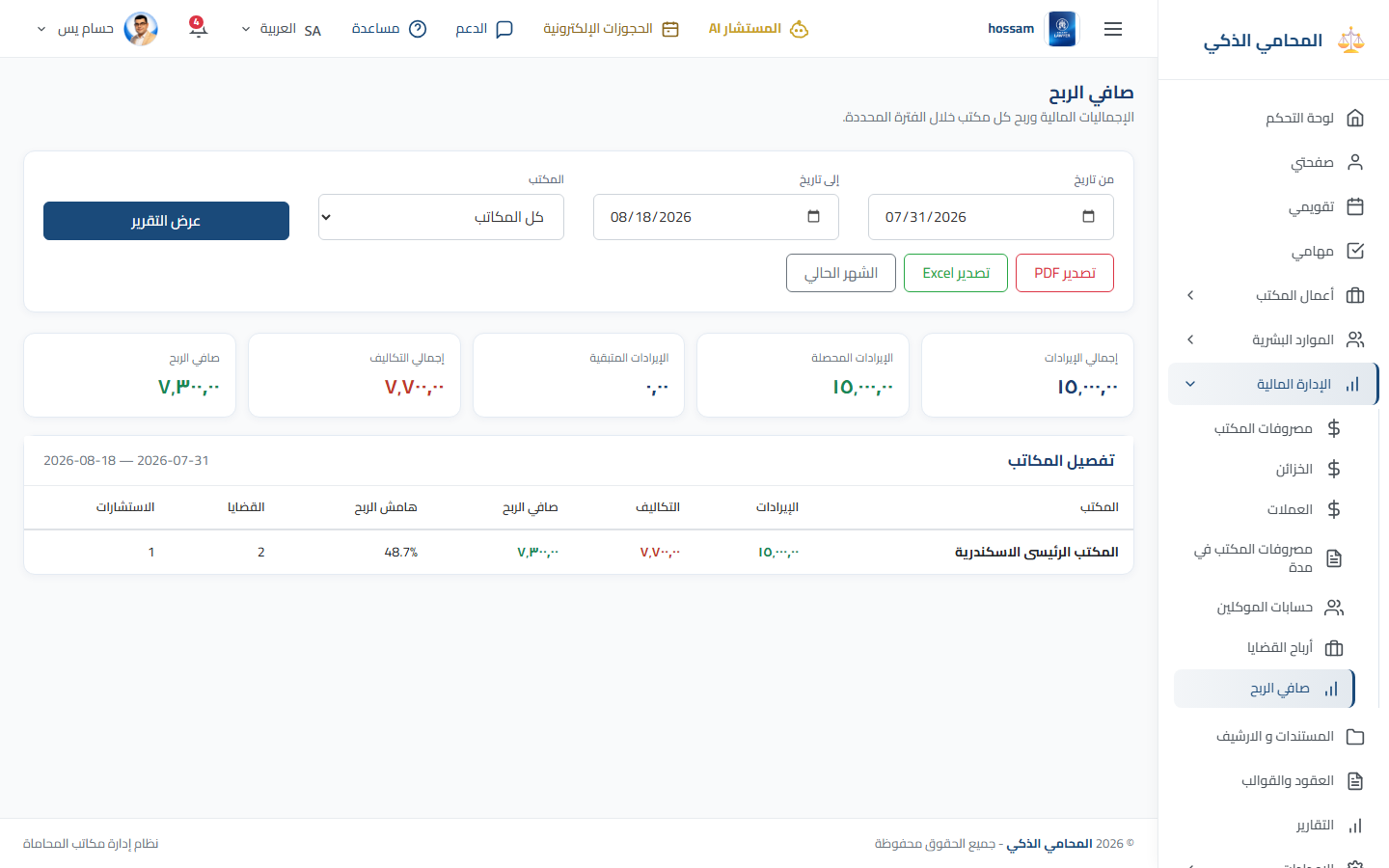
Net Profit

A consolidated view of office revenues, expenses, and net profit.

When should you use this page?

Review overall financial performance for a period.

Steps

  1. 1

    Open Net Profit.

  2. 2

    Select the reporting period, office, and currency.

  3. 3

    Review revenue and expense totals.

  4. 4

    Inspect the trend and detailed breakdown.

  5. 5

    Export the report when needed.

Practical tips

  • Access depends on financial permissions.
Arabic app screen
Arabic net profit report.
Documents & Reports

Documents & Archive

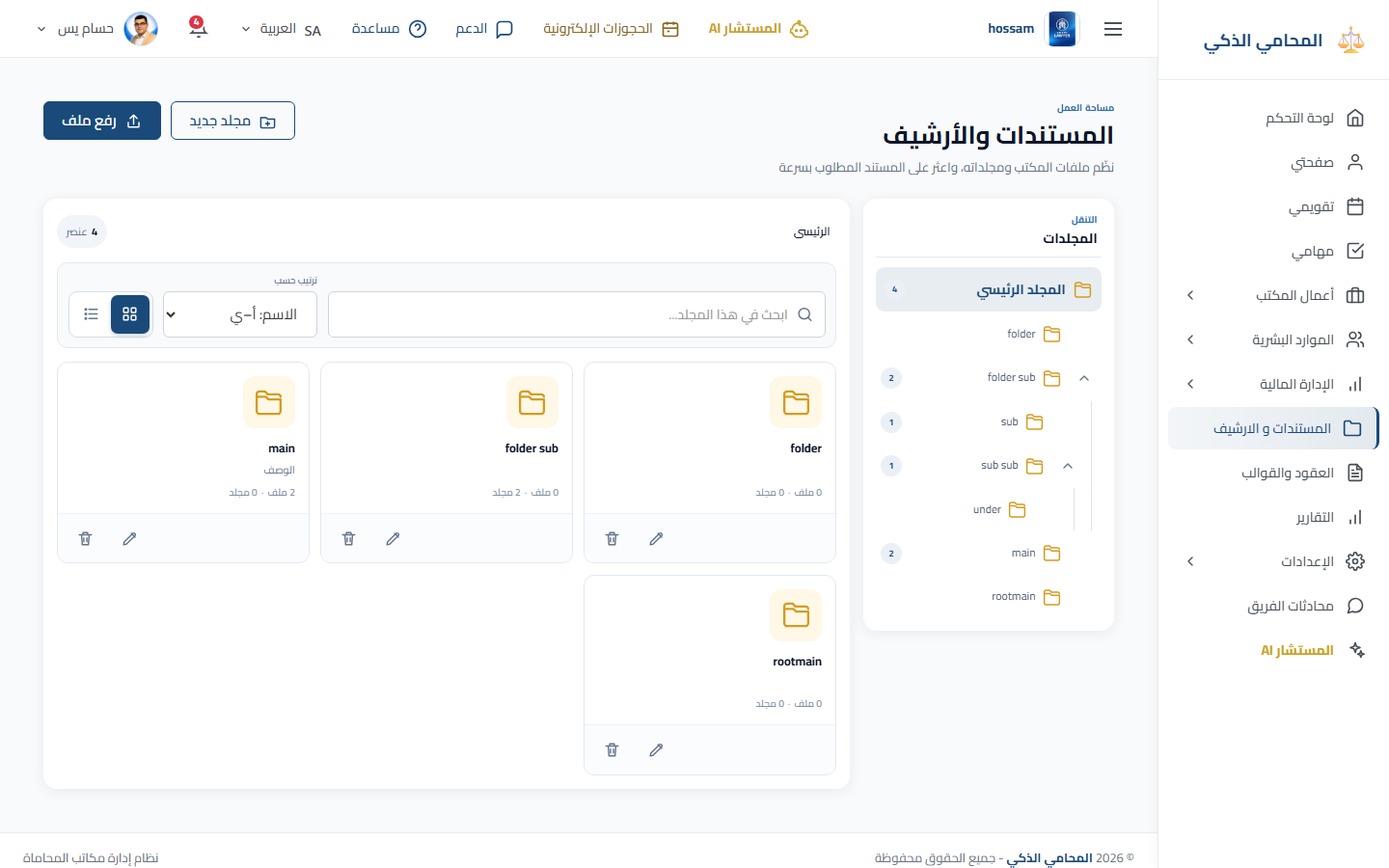
Organize general office files in folders and subfolders.

When should you use this page?

Store a document that is not kept inside a specific case or consultation.

Steps

  1. 1

    Open Documents & Archive.

  2. 2

    Select the target folder.

  3. 3

    Create a folder when needed.

  4. 4

    Choose Upload File and select the document.

  5. 5

    Enter its details and save.

  6. 6

    Use Open, Edit, Move, or Delete to maintain the archive.

Practical tips

  • Use clear folder names and avoid storing the same file twice.
Arabic app screen
Arabic document archive.
Documents & Reports

Contracts & Templates

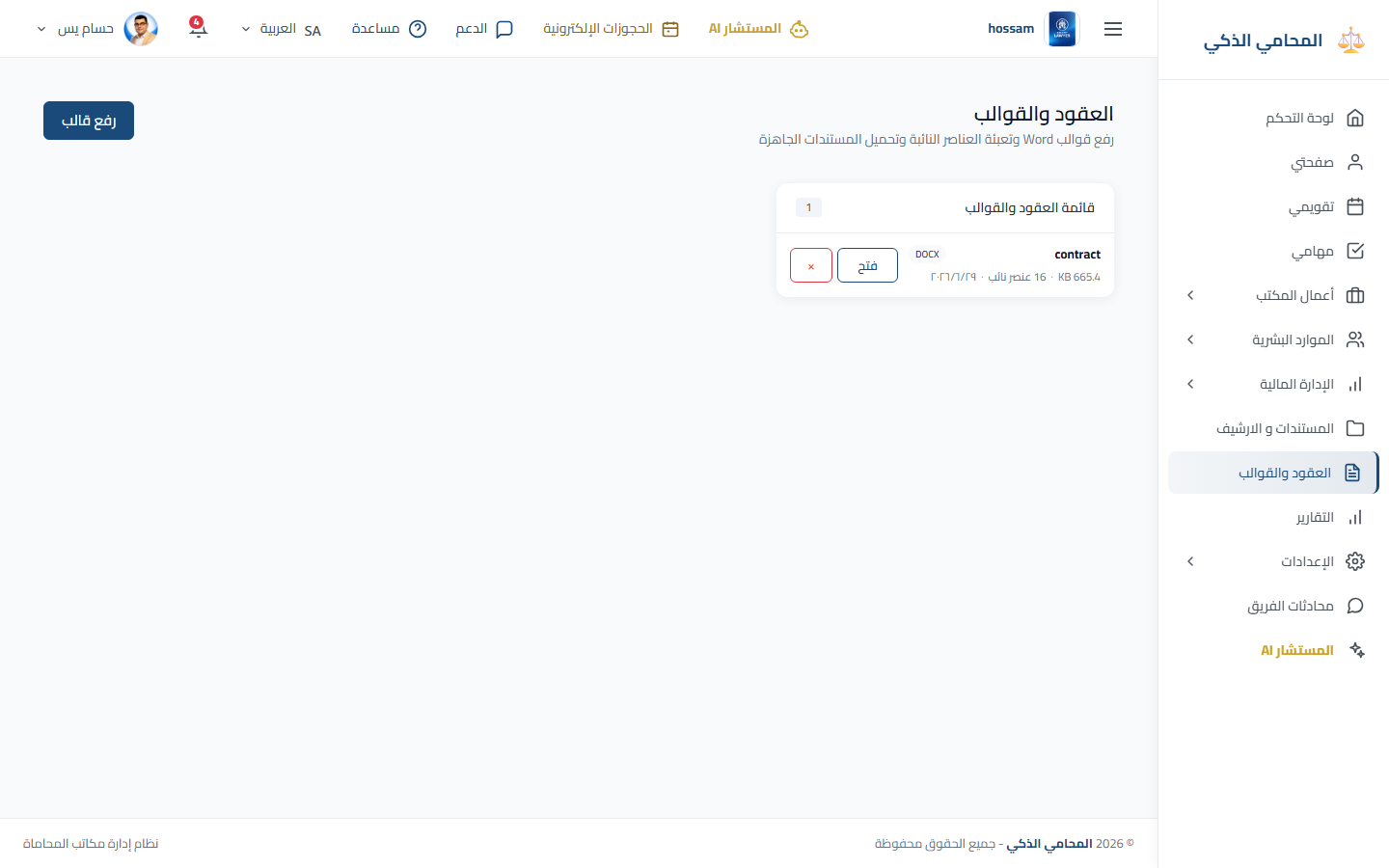
Upload Word templates, fill placeholders, preview, and generate finished documents.

When should you use this page?

Create a repeated contract or legal document from standard wording.

Steps

  1. 1

    Open Contracts & Templates.

  2. 2

    Upload a Word template or select an existing one.

  3. 3

    Review its detected placeholders.

  4. 4

    Choose Generate Document.

  5. 5

    Fill client, case, date, and office values.

  6. 6

    Preview and generate the final file.

Practical tips

  • Keep placeholder names unique and easy to understand.
Arabic app screen
Arabic contracts and templates library.
Documents & Reports

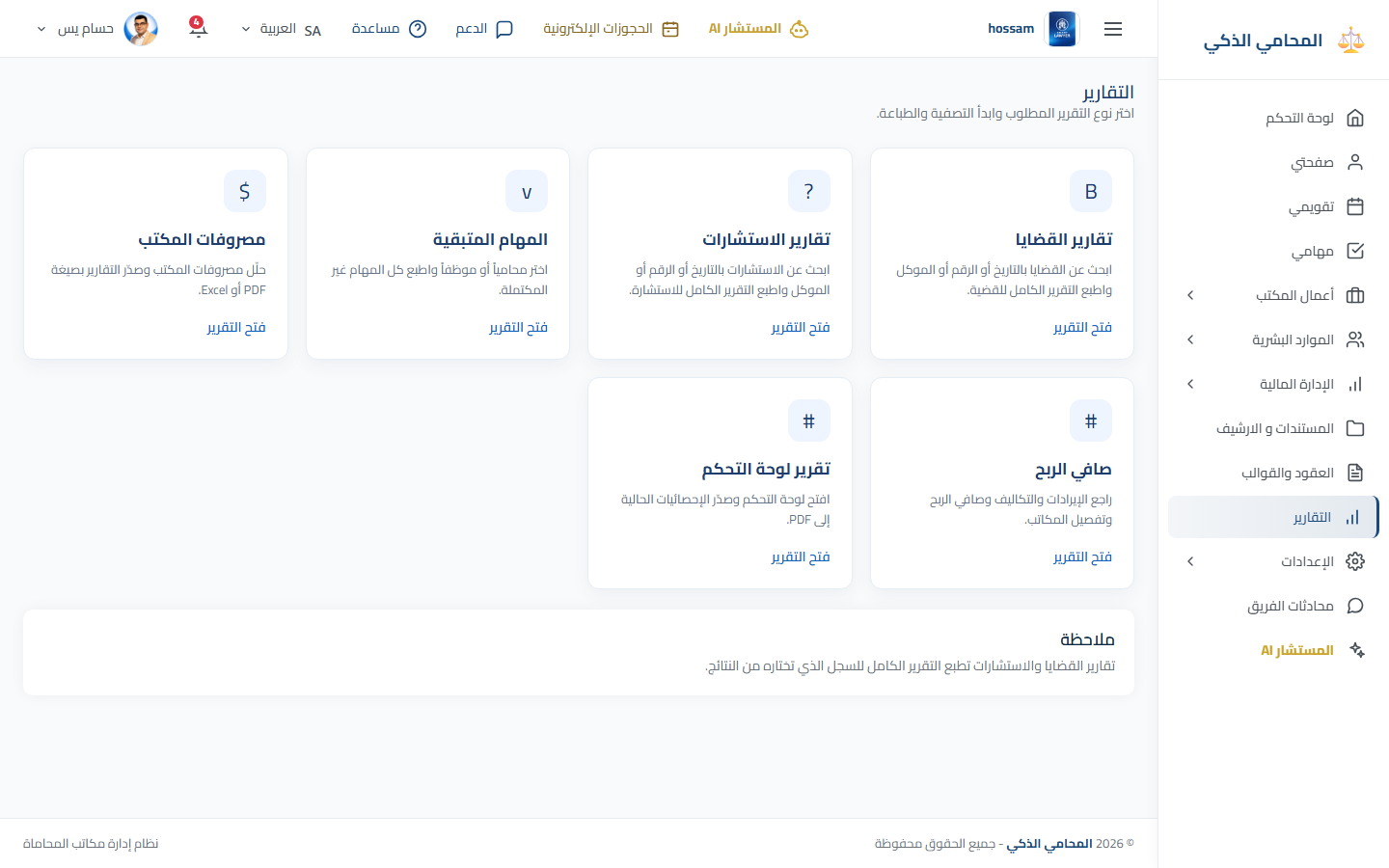
Reports

The starting page for case, consultation, task, and financial reports.

When should you use this page?

Choose the report that answers your management question.

Steps

  1. 1

    Open Reports.

  2. 2

    Choose a report card.

  3. 3

    Apply the available filters.

  4. 4

    Review the generated results.

  5. 5

    Print or export when ready.

Practical tips

  • Financial reports appear only with the required permission.
Arabic app screen
Arabic reports hub.
Arabic reports hub.
Documents & Reports

Case Reports

Filtered and printable reporting for legal cases.

When should you use this page?

Prepare a case summary for management or follow-up.

Steps

  1. 1

    Open Reports, then Case Reports.

  2. 2

    Filter by date, client, lawyer, court, type, or status.

  3. 3

    Generate the report.

  4. 4

    Review totals and rows.

  5. 5

    Print or export PDF.

Practical tips

  • Start with a narrow date range for a focused report.
Arabic app screen
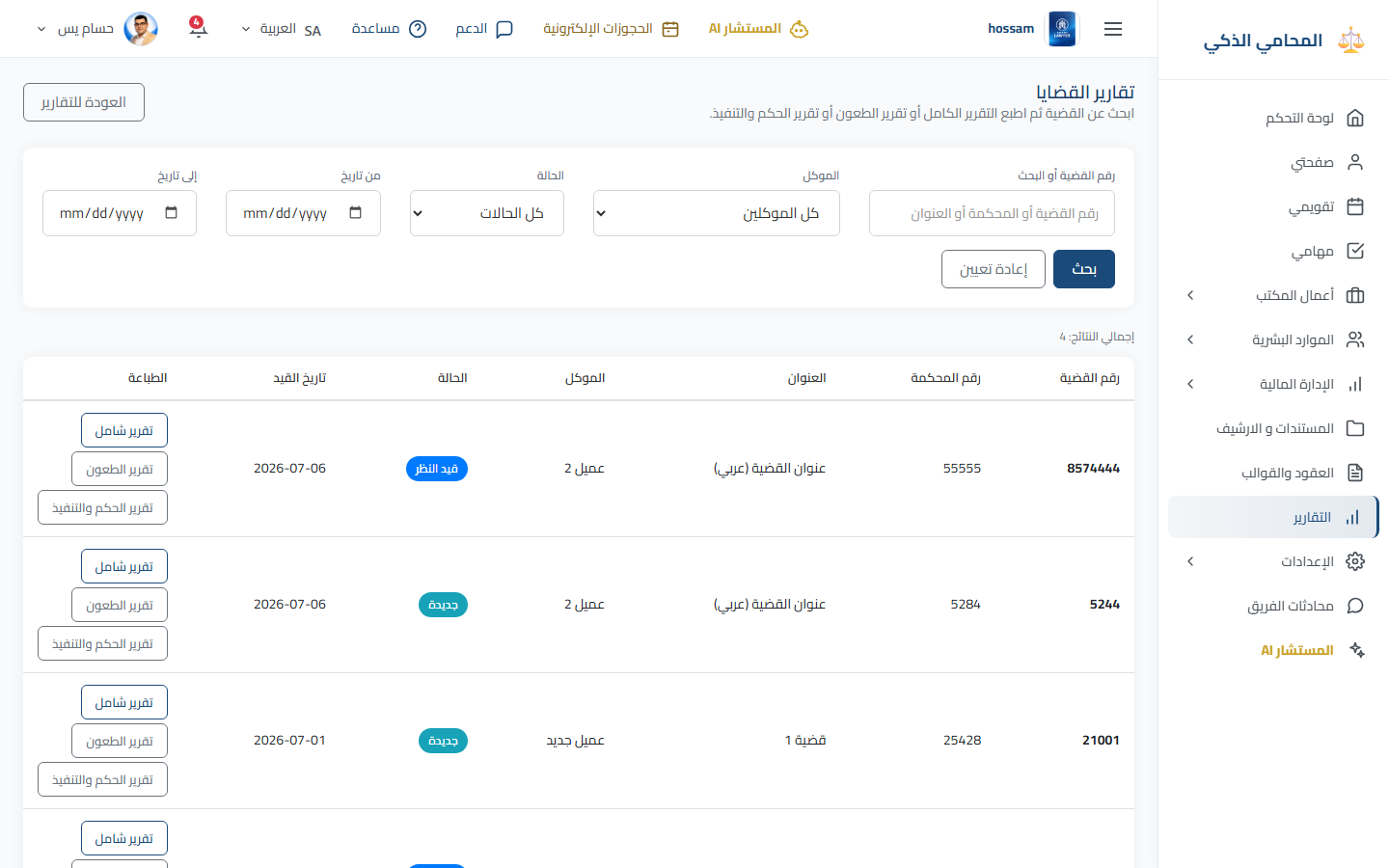
Arabic case report.
Arabic case report.
Documents & Reports

Consultation Reports

Filtered reporting for consultations, fees, and payment status.

When should you use this page?

Review consultation activity or payment follow-up.

Steps

  1. 1

    Open Reports, then Consultation Reports.

  2. 2

    Filter by date, client, lawyer, type, status, or payment.

  3. 3

    Generate the report.

  4. 4

    Review the results.

  5. 5

    Export the required format.

Practical tips

  • Update consultation payment status before reporting.
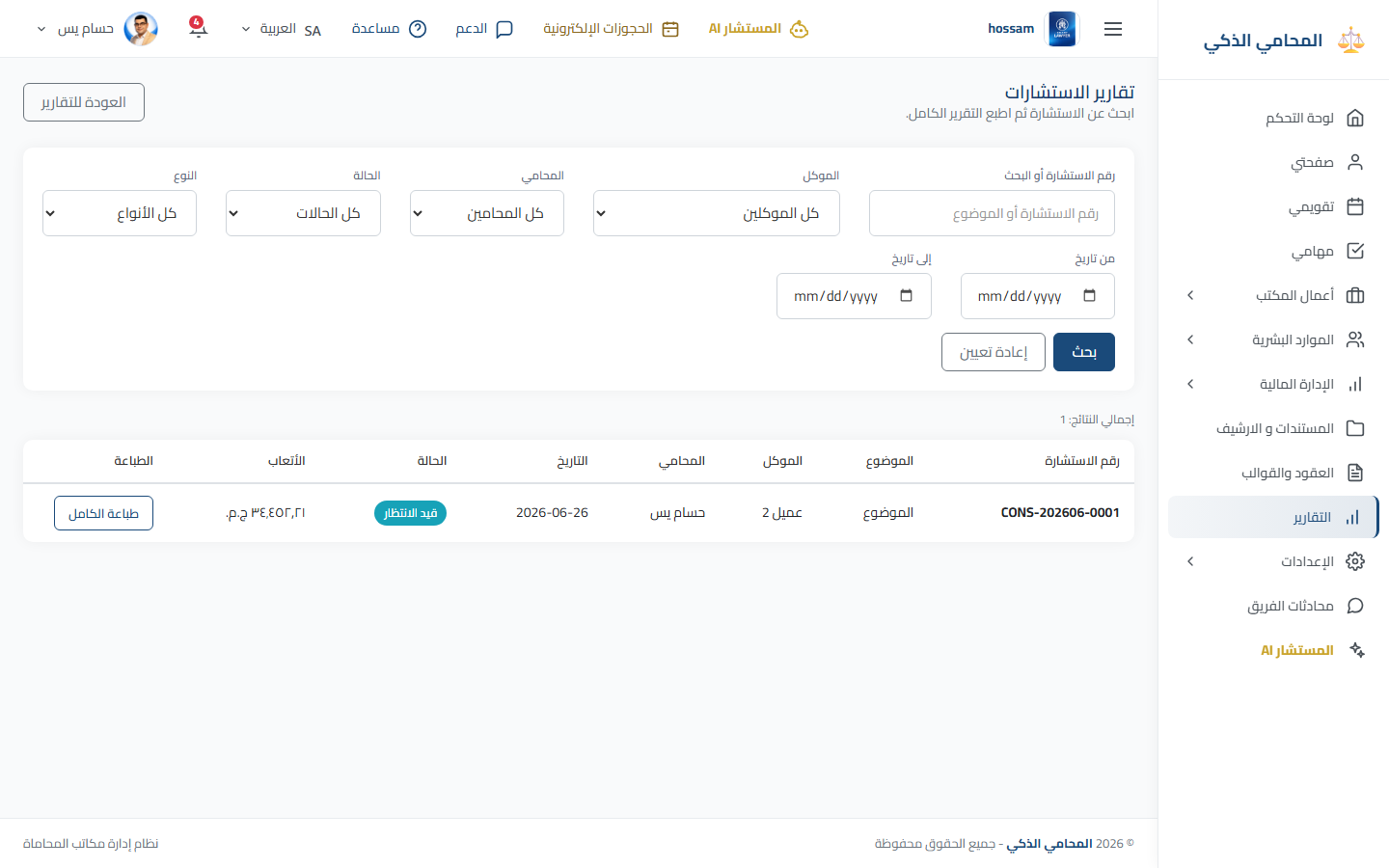
Arabic app screen
Arabic consultation report.
Documents & Reports

Task Reports

Analyze pending, completed, cancelled, and overdue work.

When should you use this page?

Review workload, progress, or overdue assignments.

Steps

  1. 1

    Open Reports, then Task Reports.

  2. 2

    Choose task type and date range.

  3. 3

    Filter by assignee and status.

  4. 4

    Generate and review the report.

  5. 5

    Export or print it.

Practical tips

  • Keep task status current for accurate reporting.
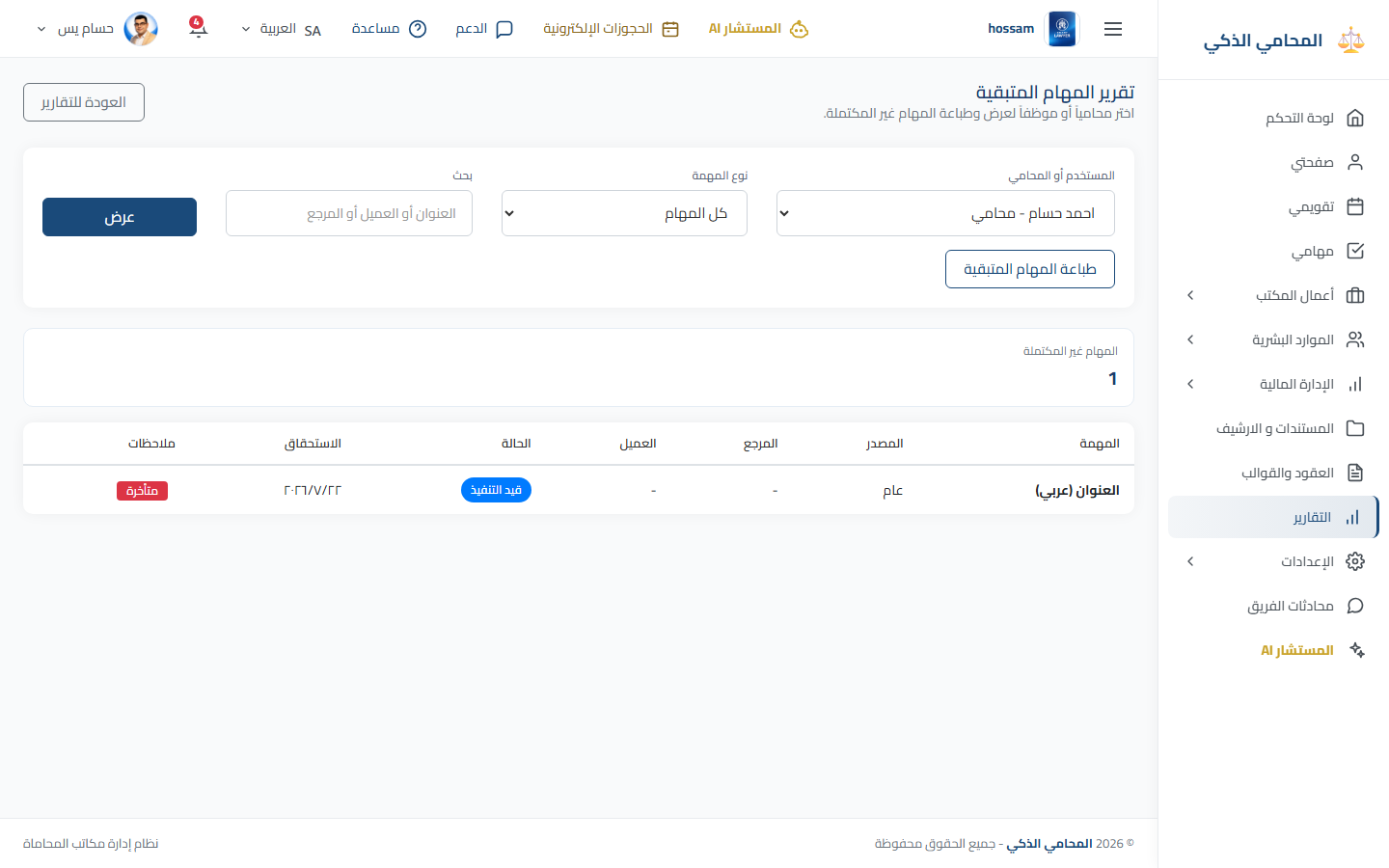
Arabic app screen
Arabic task report.
Arabic task report.
Settings

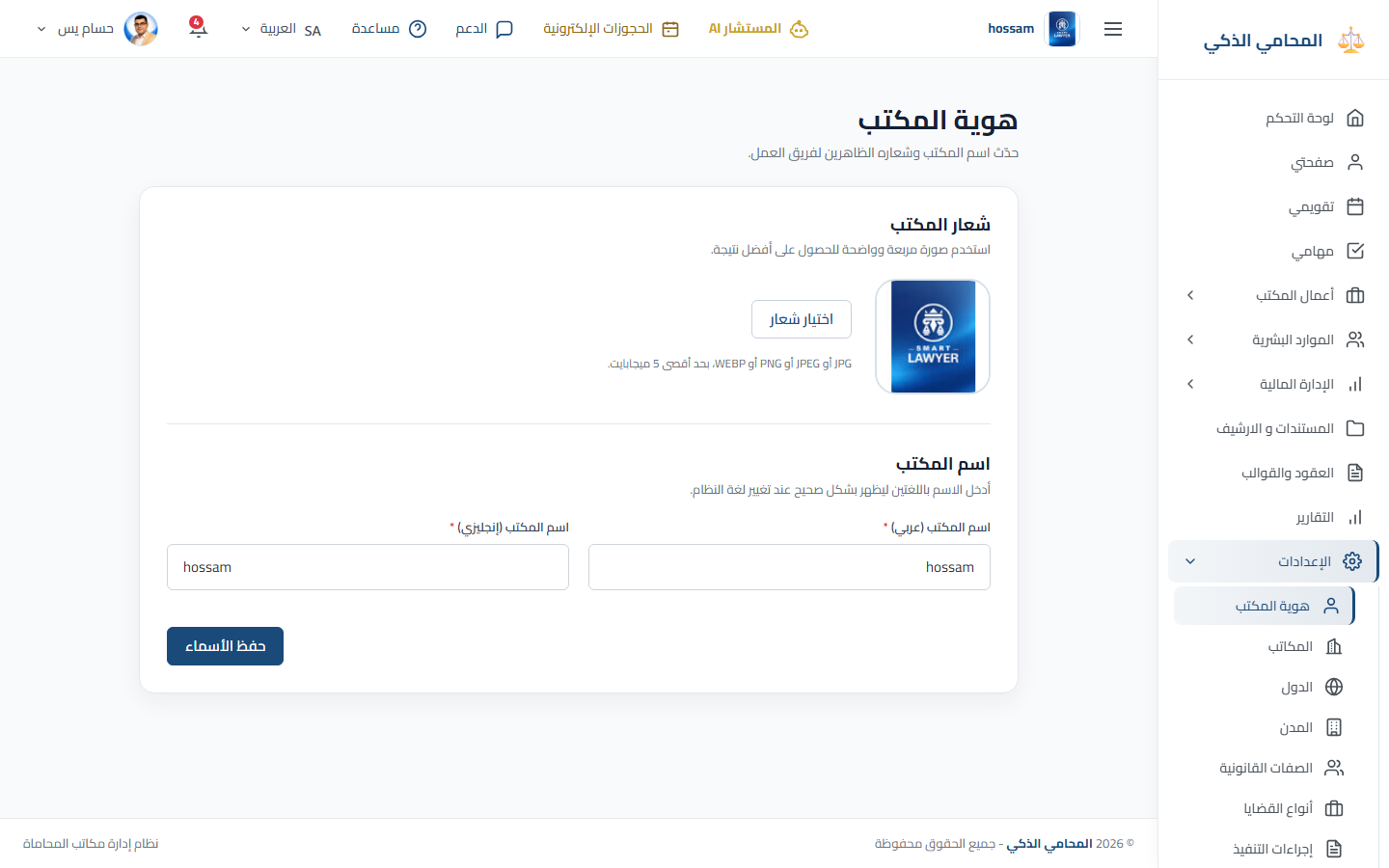
Office Identity

Configure the office name, logo, contact details, and public identity.

When should you use this page?

Set up the office or update its branding and contact information.

Steps

  1. 1

    Open Settings, then Office Identity.

  2. 2

    Enter Arabic and English names.

  3. 3

    Add address and contact details.

  4. 4

    Upload or replace the logo.

  5. 5

    Review the preview and save.

Practical tips

  • Use a clear logo image with a simple background.
Arabic app screen
Arabic office identity settings.
Settings

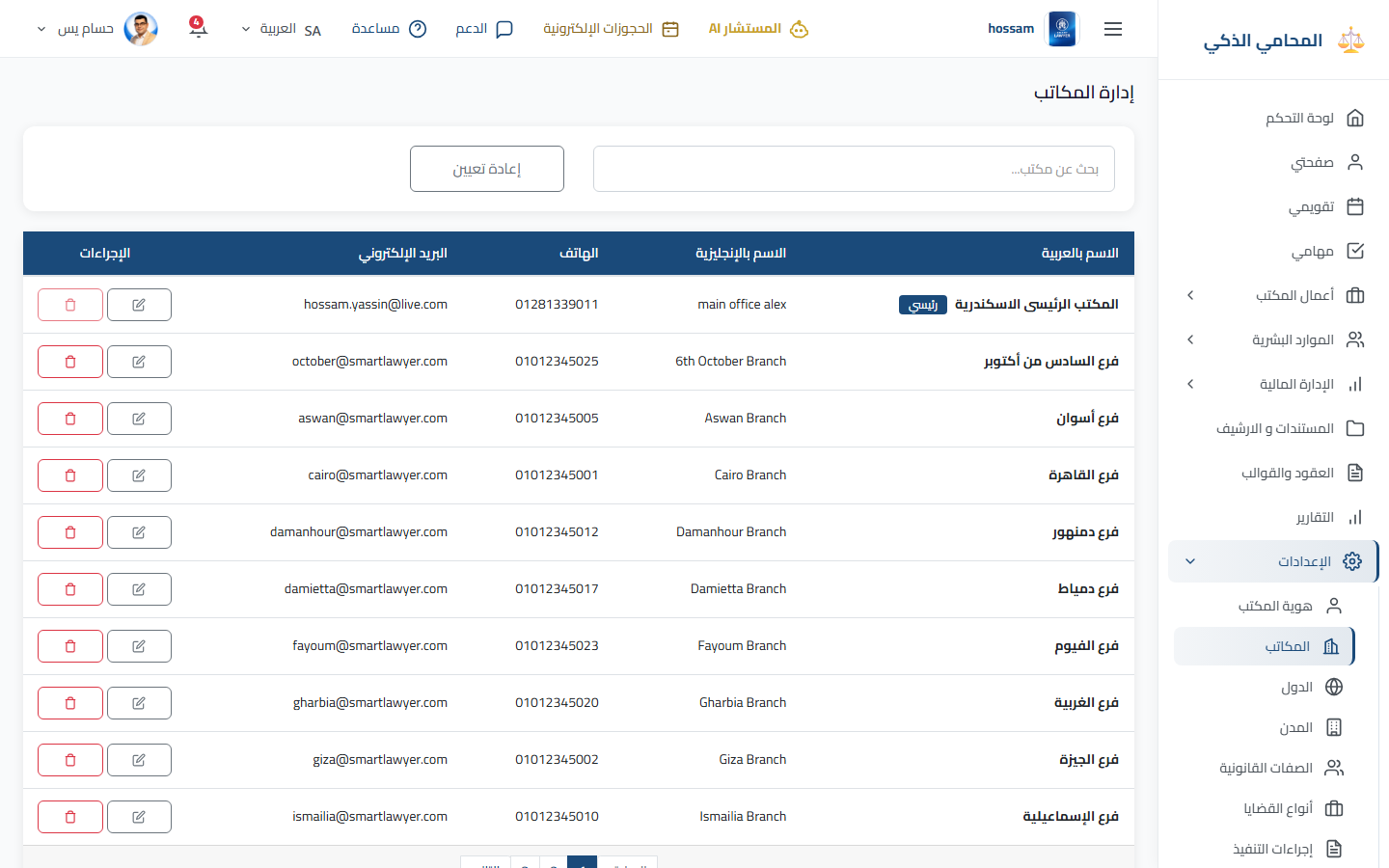
Offices

Manage the main office and branch records used throughout the system.

When should you use this page?

Add a branch or update an office address and contact details.

Steps

  1. 1

    Open Settings, then Offices.

  2. 2

    Search existing offices.

  3. 3

    Select Add Office.

  4. 4

    Enter names, address, contacts, and status.

  5. 5

    Save or edit the office.

Practical tips

  • Deactivate unused branches instead of duplicating them.
Arabic app screen
Arabic offices settings.
Settings

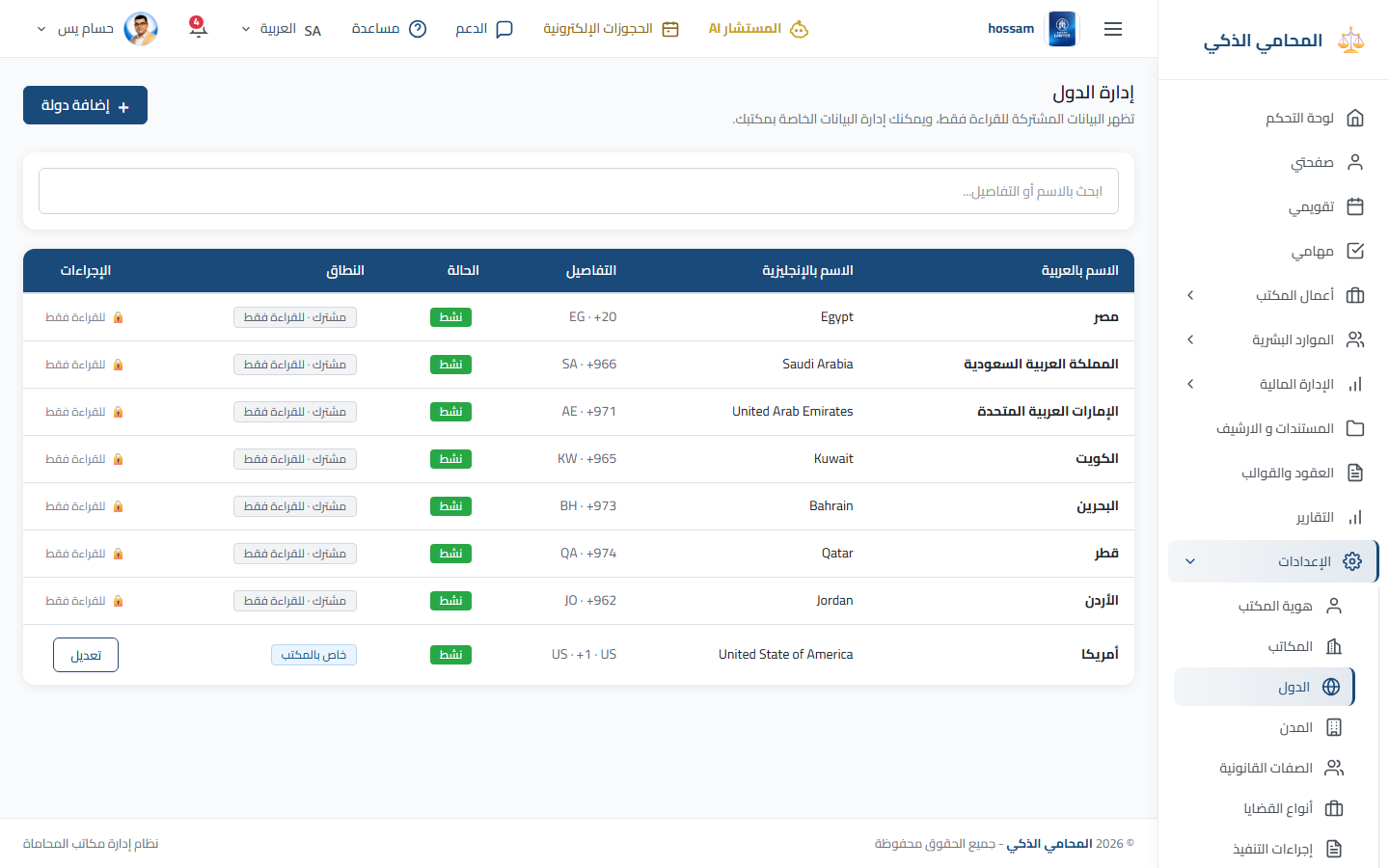
Countries

Maintain country values used in addresses and lookup fields.

When should you use this page?

Add a country that is missing from a form.

Steps

  1. 1

    Open Settings, then Countries.

  2. 2

    Search for the country.

  3. 3

    Select Add if missing.

  4. 4

    Enter Arabic and English names and code.

  5. 5

    Save or edit the value.

Practical tips

  • Search first to avoid duplicate spelling variants.
Arabic app screen
Arabic countries settings.
Settings

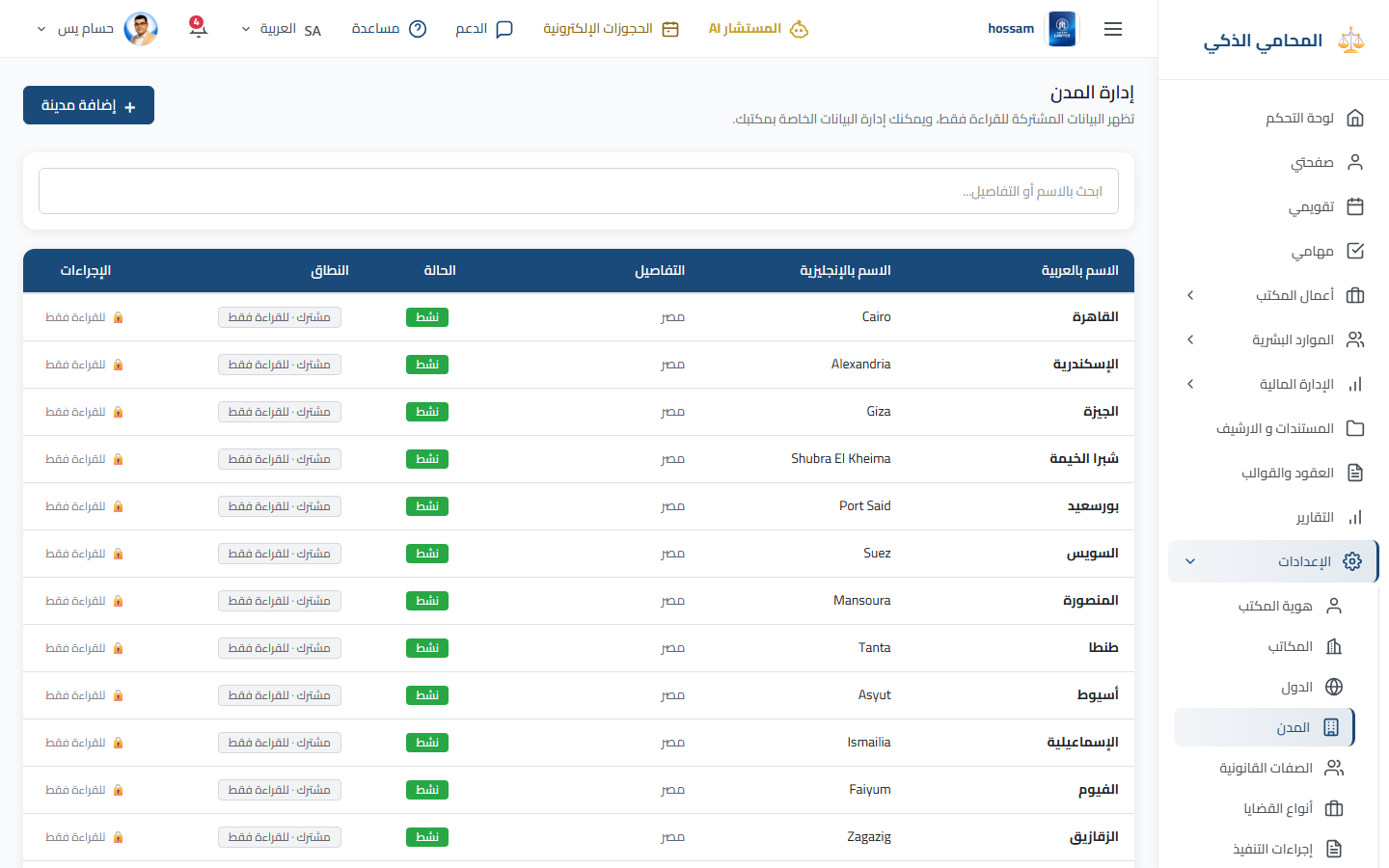
Cities

Maintain city values and connect them to the correct country.

When should you use this page?

Add a city that is missing from an address form.

Steps

  1. 1

    Open Settings, then Cities.

  2. 2

    Choose or search the country.

  3. 3

    Search for the city.

  4. 4

    Add Arabic and English names if missing.

  5. 5

    Save or edit the city.

Practical tips

  • Select the correct country before adding a city.
Arabic app screen
Arabic cities settings.
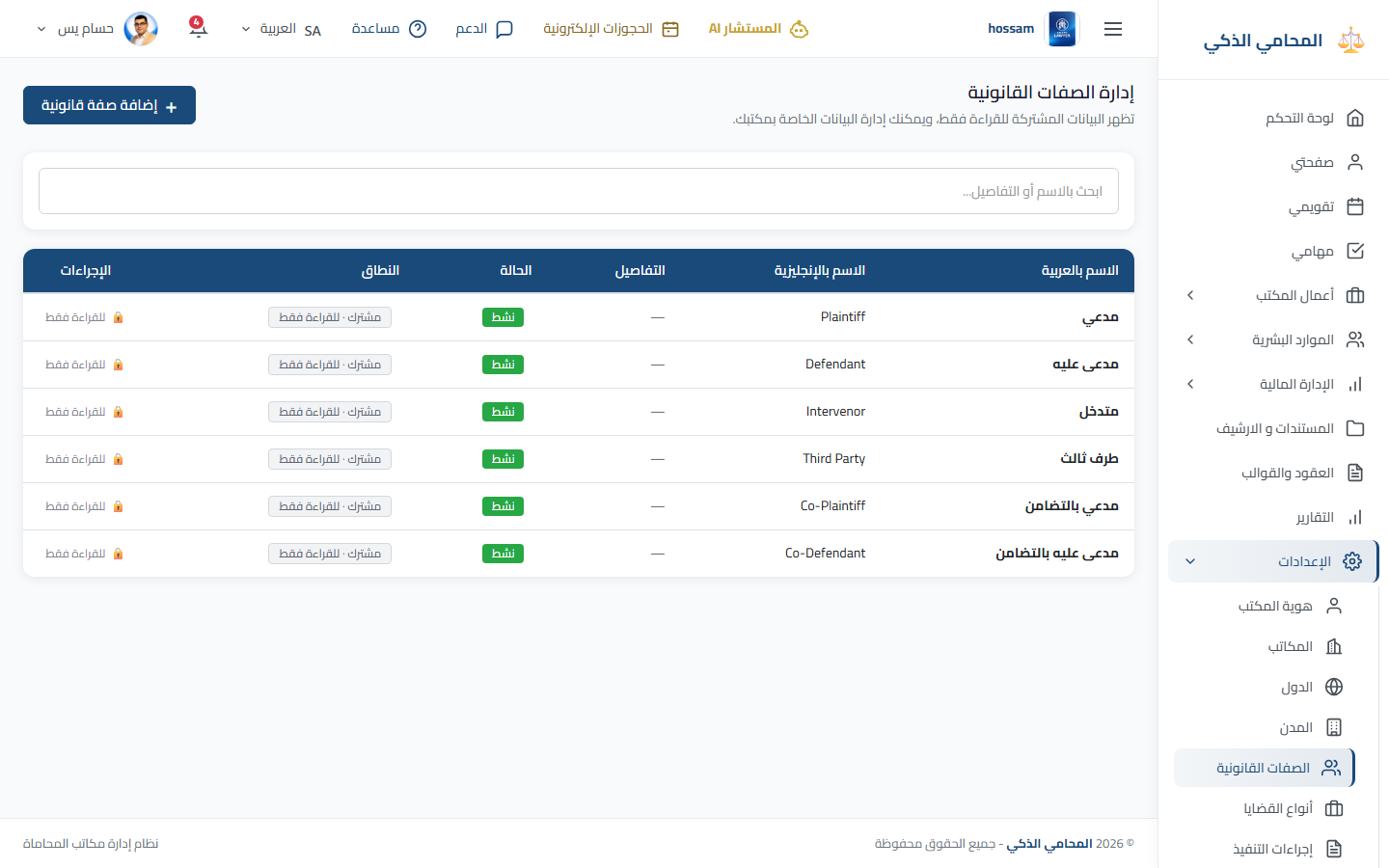
Settings

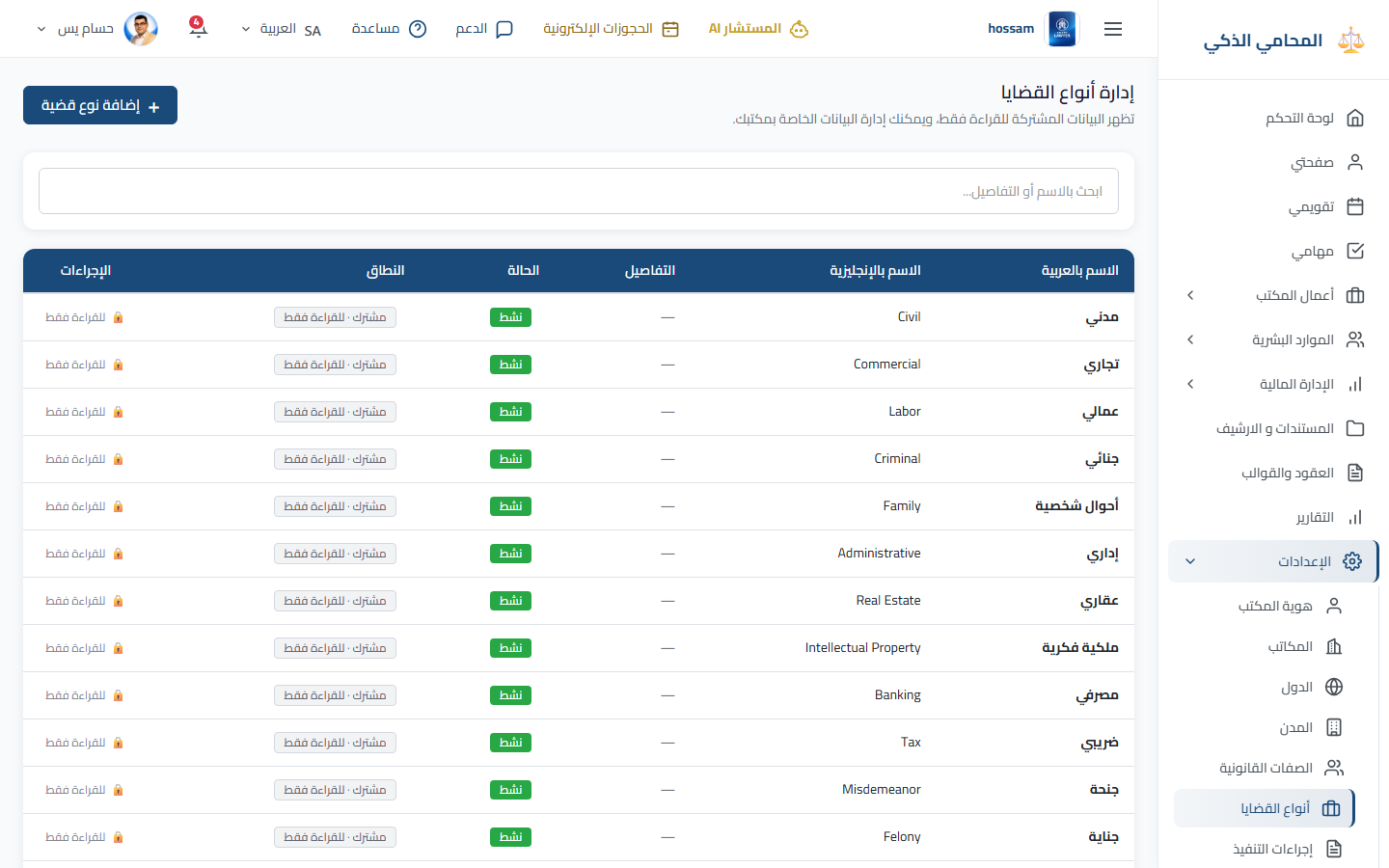
Case Types

Define the categories available when registering legal cases.

When should you use this page?

Add or correct a case classification.

Steps

  1. 1

    Open Settings, then Case Types.

  2. 2

    Search existing types.

  3. 3

    Select Add.

  4. 4

    Enter Arabic and English names and required details.

  5. 5

    Save or edit the type.

Practical tips

  • Prefer broad reusable types over case-specific wording.
Arabic app screen
Arabic case type settings.
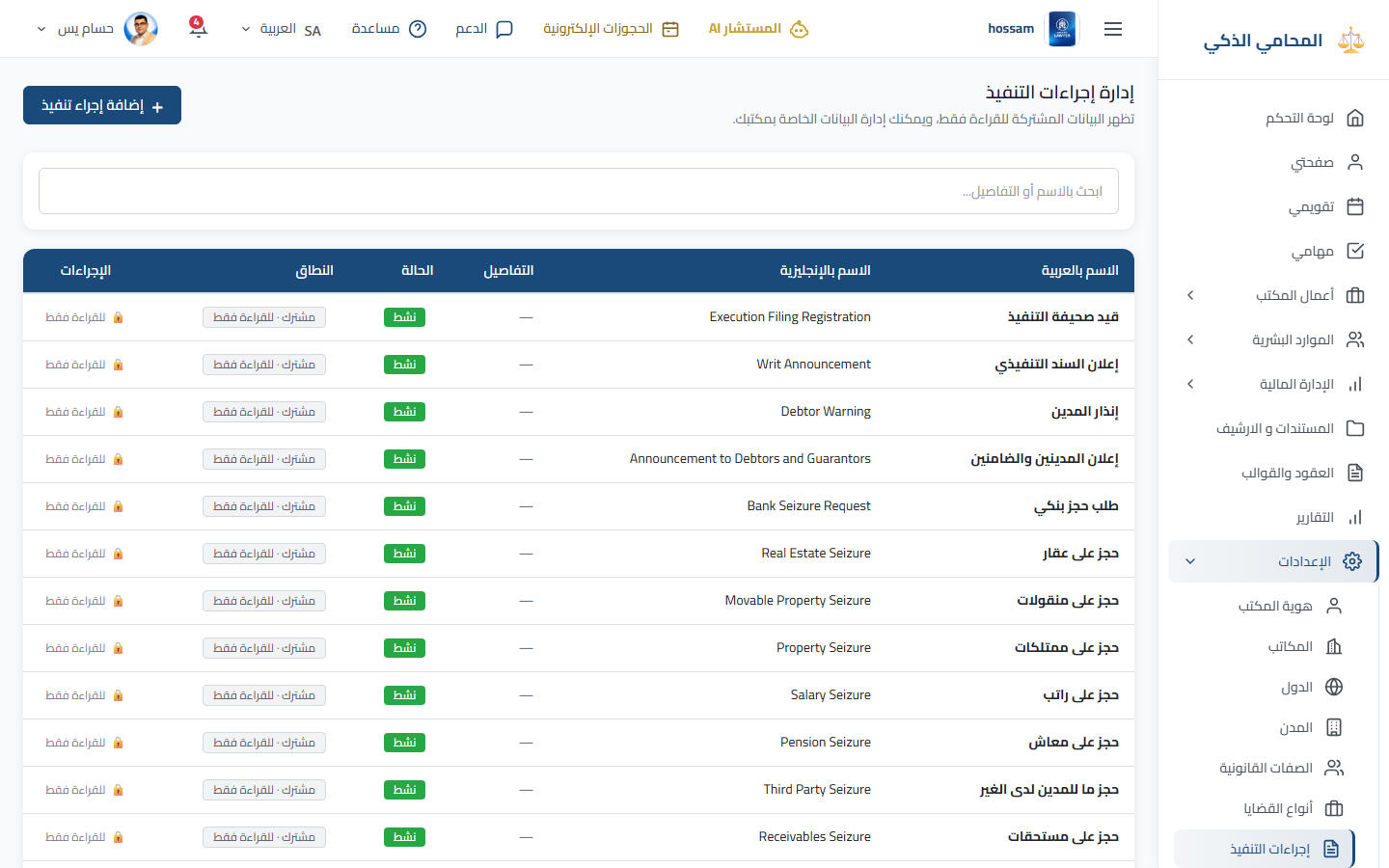
Settings

Execution Procedures

Define execution action types used when following judgments and enforcement.

When should you use this page?

A required enforcement action is missing from a case.

Steps

  1. 1

    Open Settings, then Execution Procedures.

  2. 2

    Search existing procedures.

  3. 3

    Select Add.

  4. 4

    Enter Arabic and English names.

  5. 5

    Save or update the procedure.

Practical tips

  • Use the terminology followed by your office and courts.
Arabic app screen
Arabic execution procedure settings.
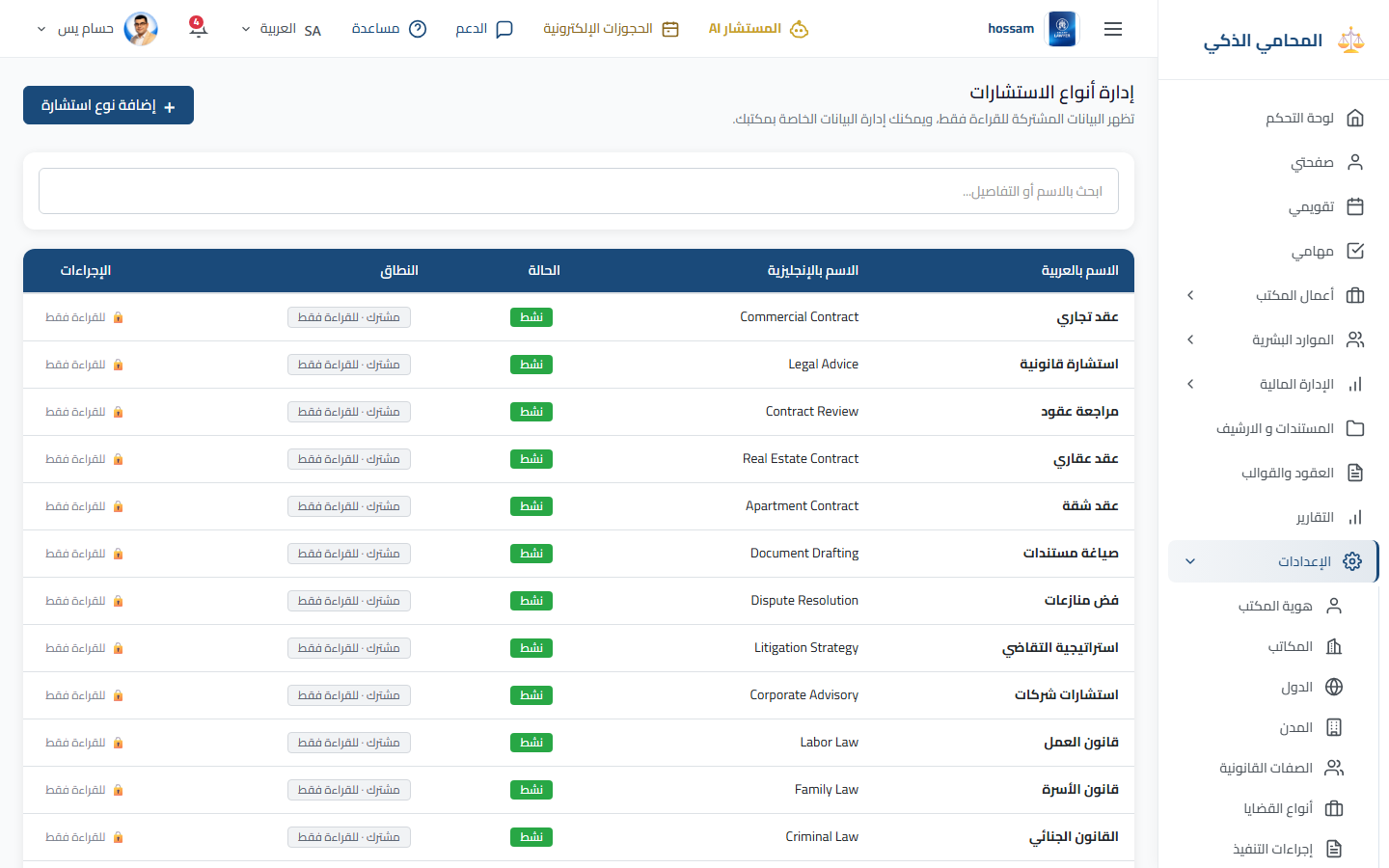
Settings

Consultation Types

Define categories used for legal work and consultation records.

When should you use this page?

Add a consultation category needed by the office.

Steps

  1. 1

    Open Settings, then Consultation Types.

  2. 2

    Search existing types.

  3. 3

    Select Add.

  4. 4

    Enter Arabic and English names.

  5. 5

    Save or edit the type.

Practical tips

  • Keep categories distinct enough for useful reports.
Arabic app screen
Arabic consultation type settings.
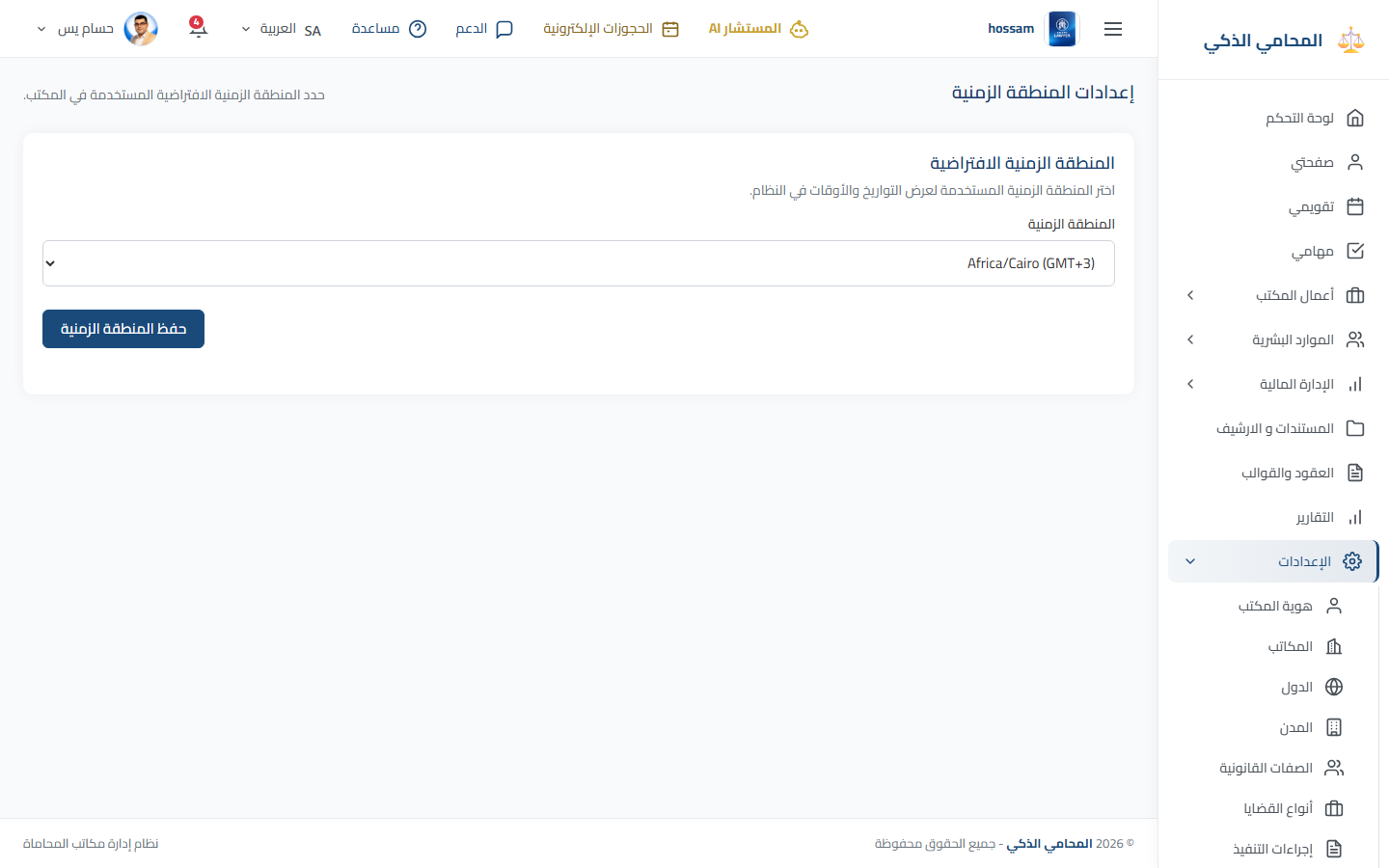
Settings

Time Zone

Set the time zone used for dates, sessions, reminders, and notifications.

When should you use this page?

Set up the office or correct displayed appointment times.

Steps

  1. 1

    Open Settings, then Time Zone.

  2. 2

    Search for the office region.

  3. 3

    Select the correct time zone.

  4. 4

    Review the current local time preview.

  5. 5

    Save.

Practical tips

  • Changing the time zone changes display, not the underlying event.
Arabic app screen
Arabic time zone settings.
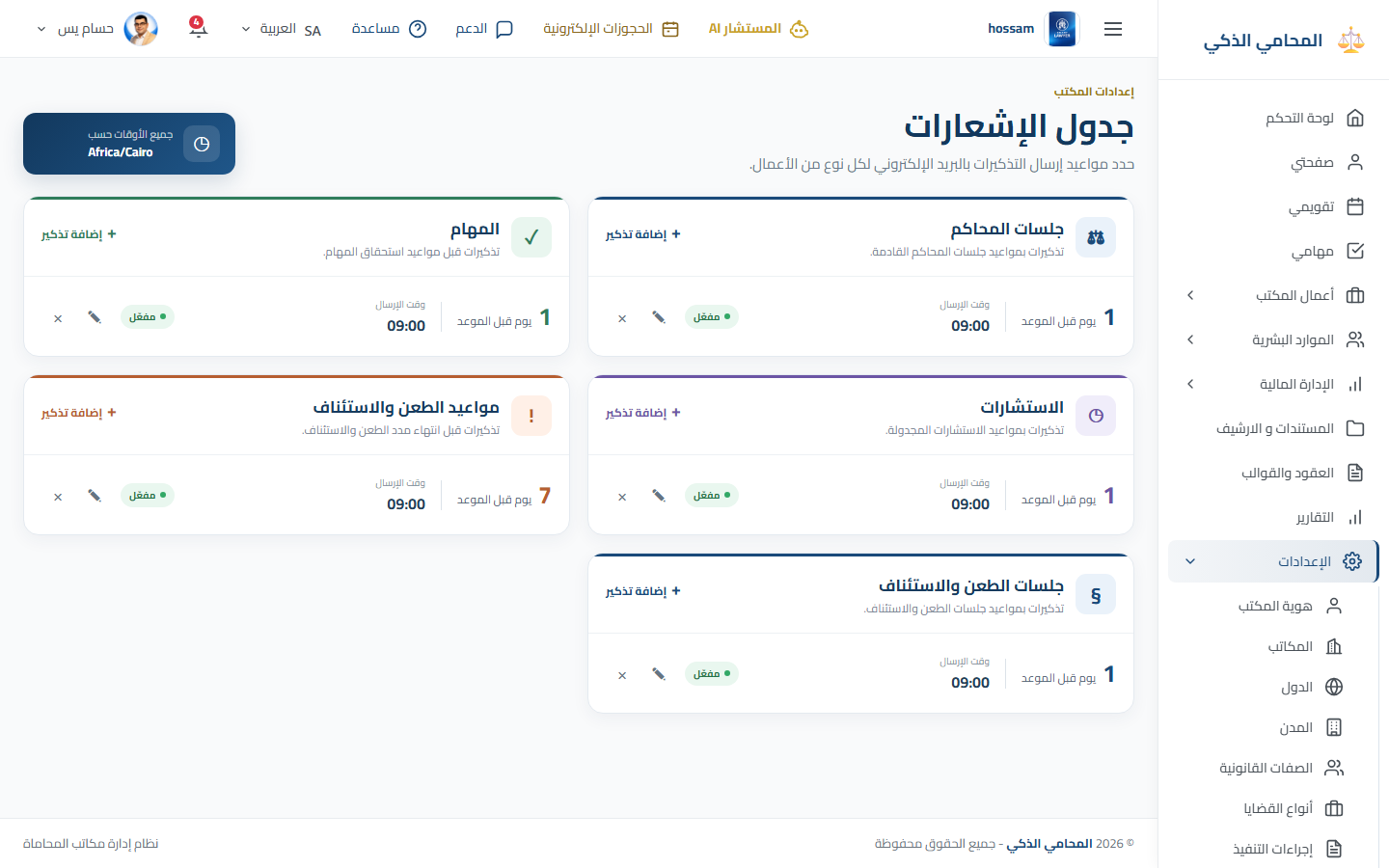
Settings

Notification Schedule

Configure when reminders are sent for sessions, tasks, and other events.

When should you use this page?

Change how early users are reminded about work.

Steps

  1. 1

    Open Settings, then Notification Schedule.

  2. 2

    Choose an event type.

  3. 3

    Enable or disable its reminder.

  4. 4

    Set the lead time and delivery options.

  5. 5

    Save the rule.

Practical tips

  • Avoid too many reminders for the same event.
Arabic app screen
Arabic notification schedule.
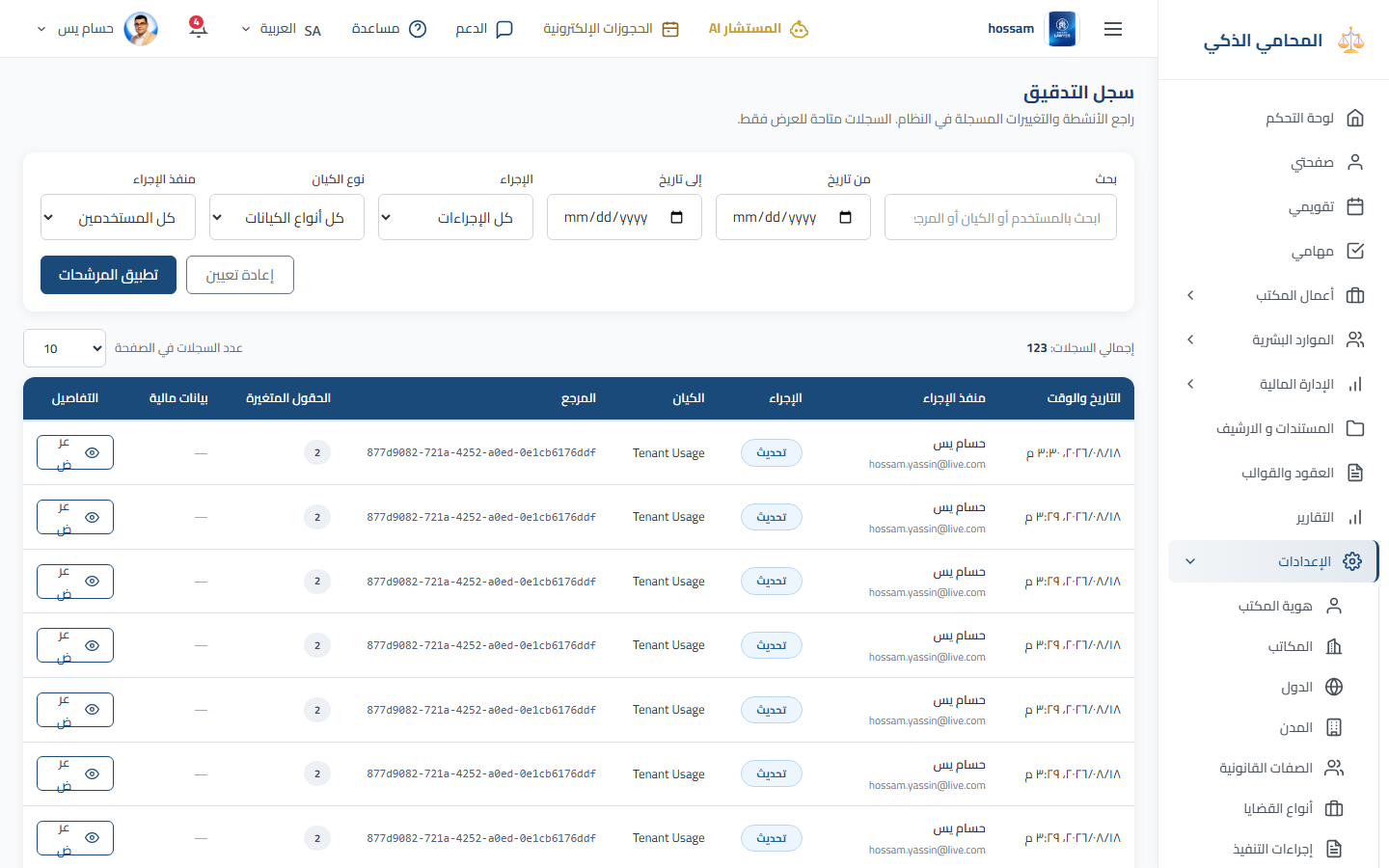
Settings

Audit Logs

Review important user actions and changes made inside the office account.

When should you use this page?

Investigate who changed a record and when.

Steps

  1. 1

    Open Settings, then Audit Logs.

  2. 2

    Select a date range.

  3. 3

    Filter by user, action, or entity.

  4. 4

    Open an entry for full details.

  5. 5

    Export filtered results when required.

Practical tips

  • Use narrow filters when investigating a specific change.
Arabic app screen
Arabic audit log.
Arabic audit log.
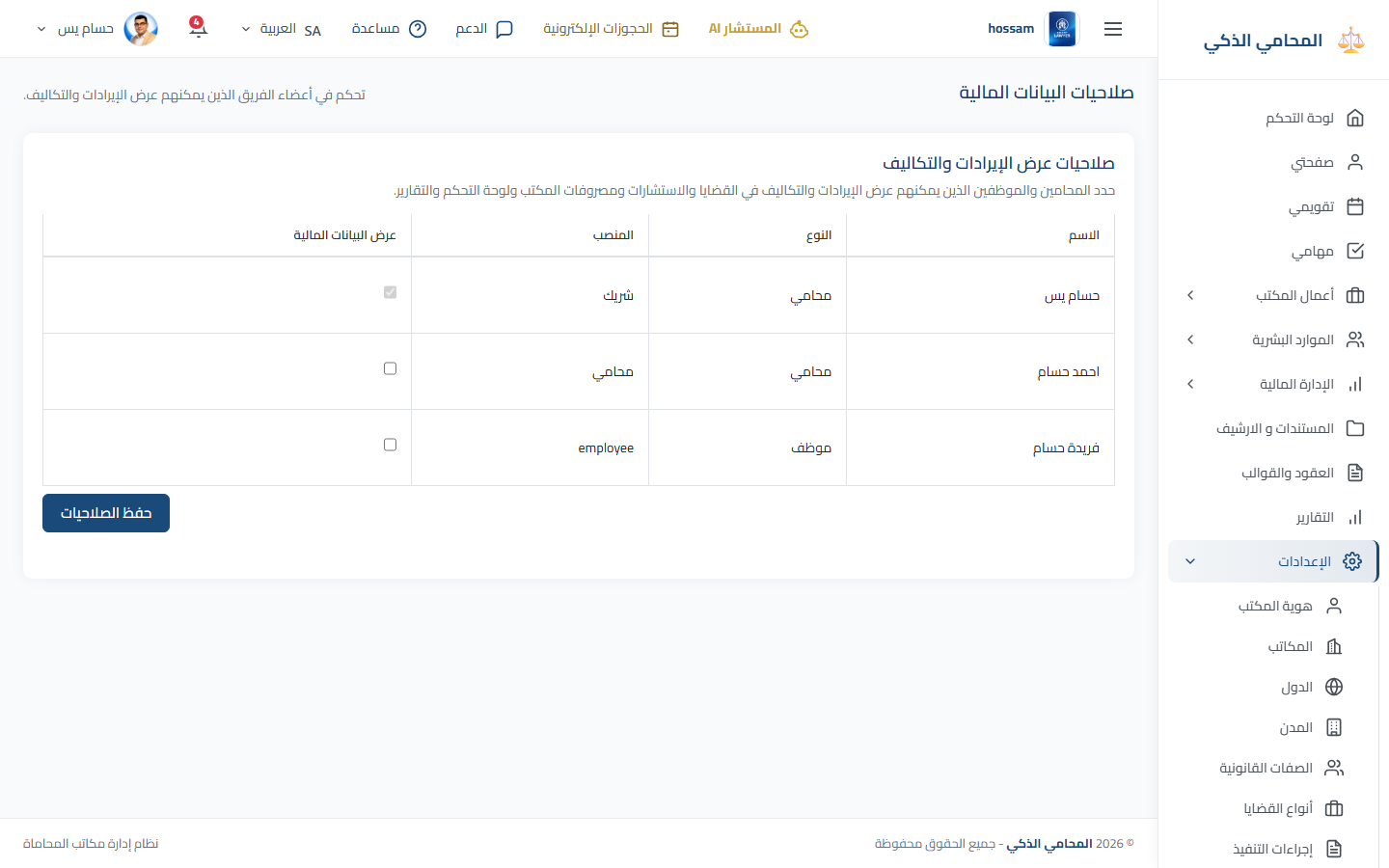
Settings

Financial Permissions

Control which team members can view sensitive revenue, cost, and profit information.

When should you use this page?

Grant or remove financial visibility for a staff member.

Steps

  1. 1

    Open Settings, then Financial Permissions.

  2. 2

    Find the lawyer or employee.

  3. 3

    Review the available financial access switches.

  4. 4

    Enable only the required permissions.

  5. 5

    Save and ask the user to refresh their session.

Practical tips

  • This page is restricted to partners.
Arabic app screen
Arabic financial permissions.
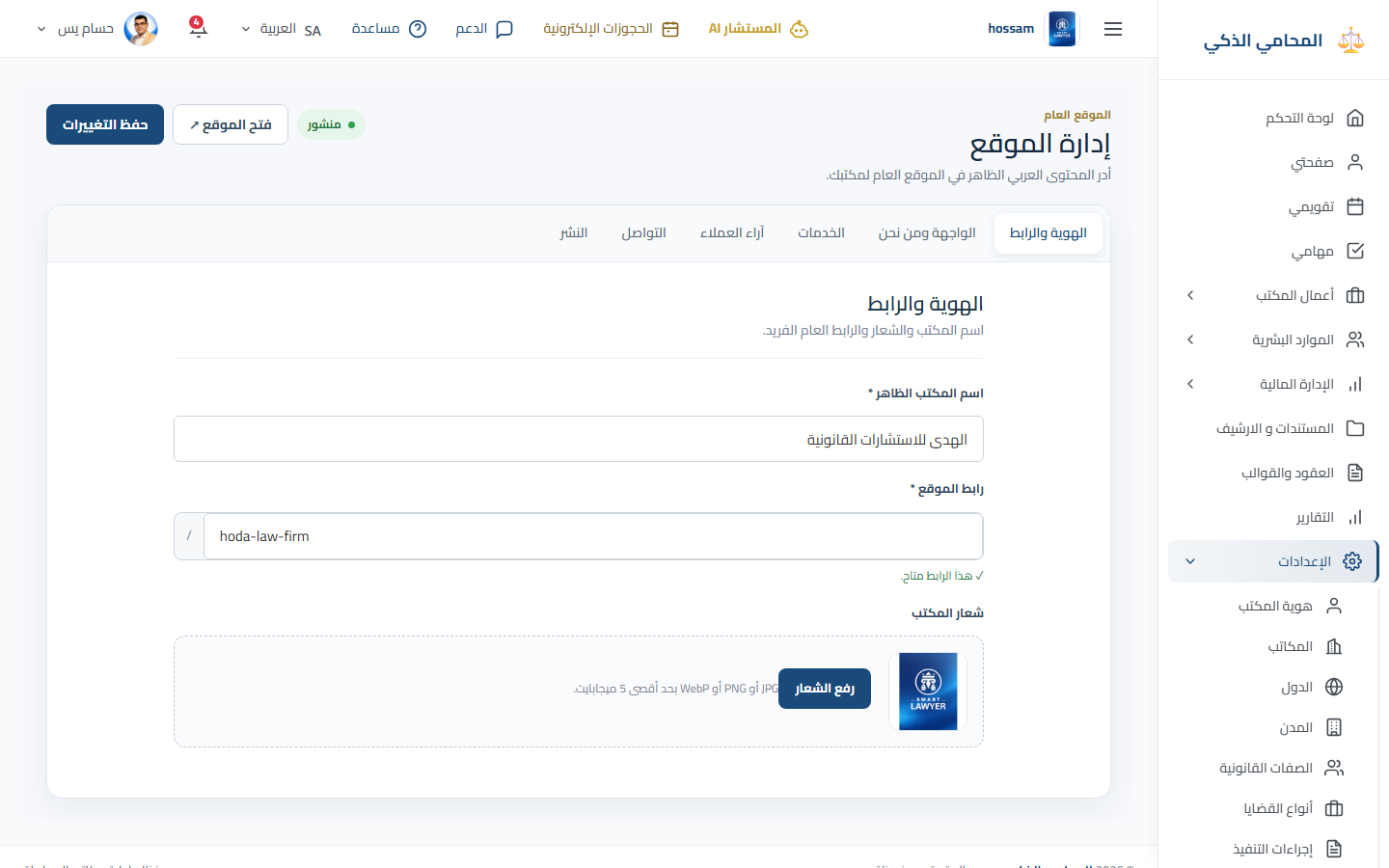
Settings

Website CMS

Manage the office public website content, services, branding, and published information.

When should you use this page?

Update what visitors see on the office website.

Steps

  1. 1

    Open Website CMS.

  2. 2

    Choose the content area to update.

  3. 3

    Edit bilingual text, images, services, or contact information.

  4. 4

    Preview the result.

  5. 5

    Save and publish the changes.

Practical tips

  • This page requires the public-website feature and manager access.
Arabic app screen
Arabic website CMS.
Arabic website CMS.
Collaboration, Support & Account

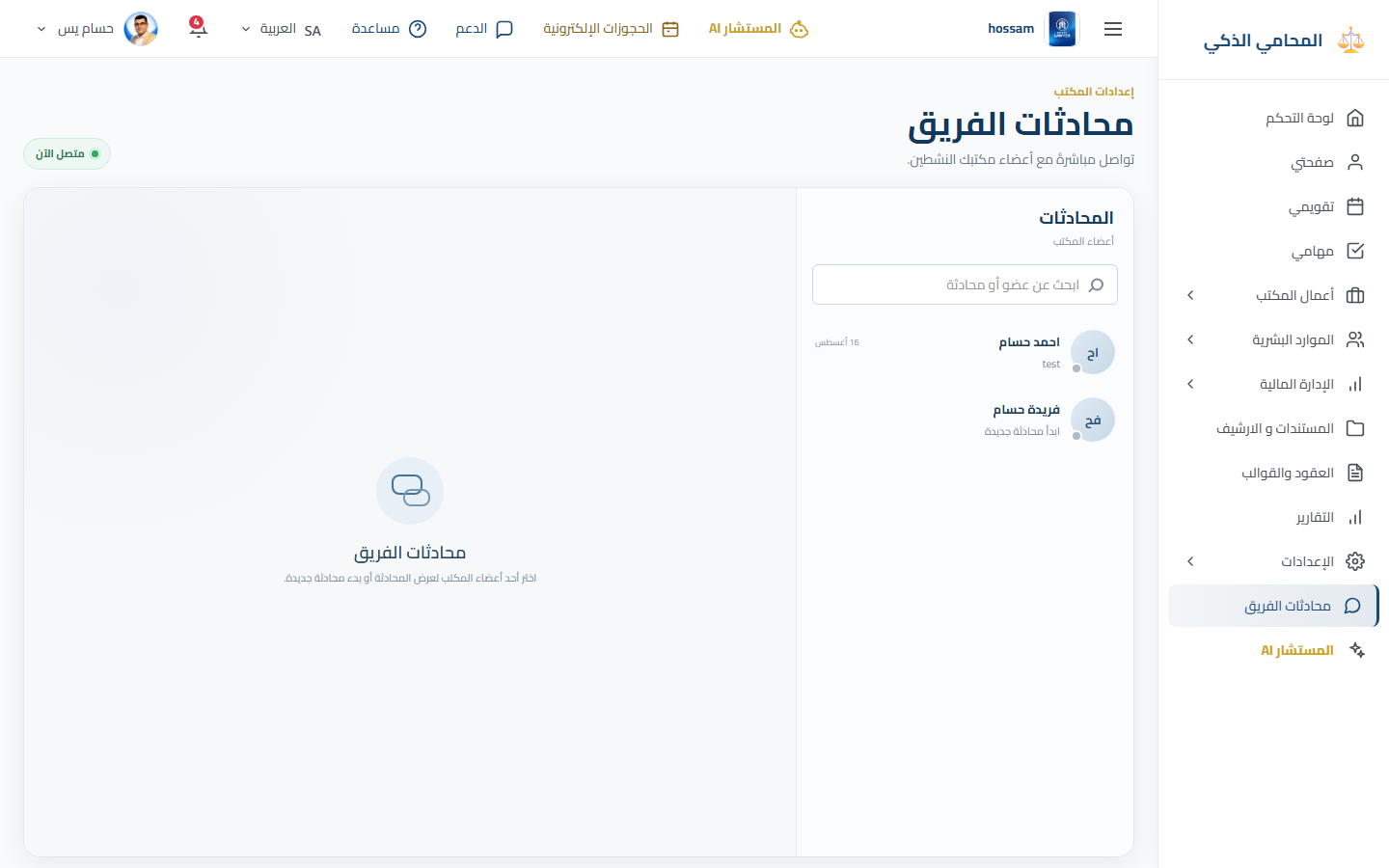
Team Chat

Exchange direct messages with lawyers and employees inside the office.

When should you use this page?

Coordinate office work without leaving SmartLawyer.

Steps

  1. 1

    Open Team Chat.

  2. 2

    Search for a team member.

  3. 3

    Open or start the conversation.

  4. 4

    Type the message and add an attachment when needed.

  5. 5

    Send and monitor delivery or unread status.

Practical tips

  • Keep case-specific decisions recorded in the case when appropriate.
Arabic app screen
Arabic team chat.
Arabic team chat.
Collaboration, Support & Account

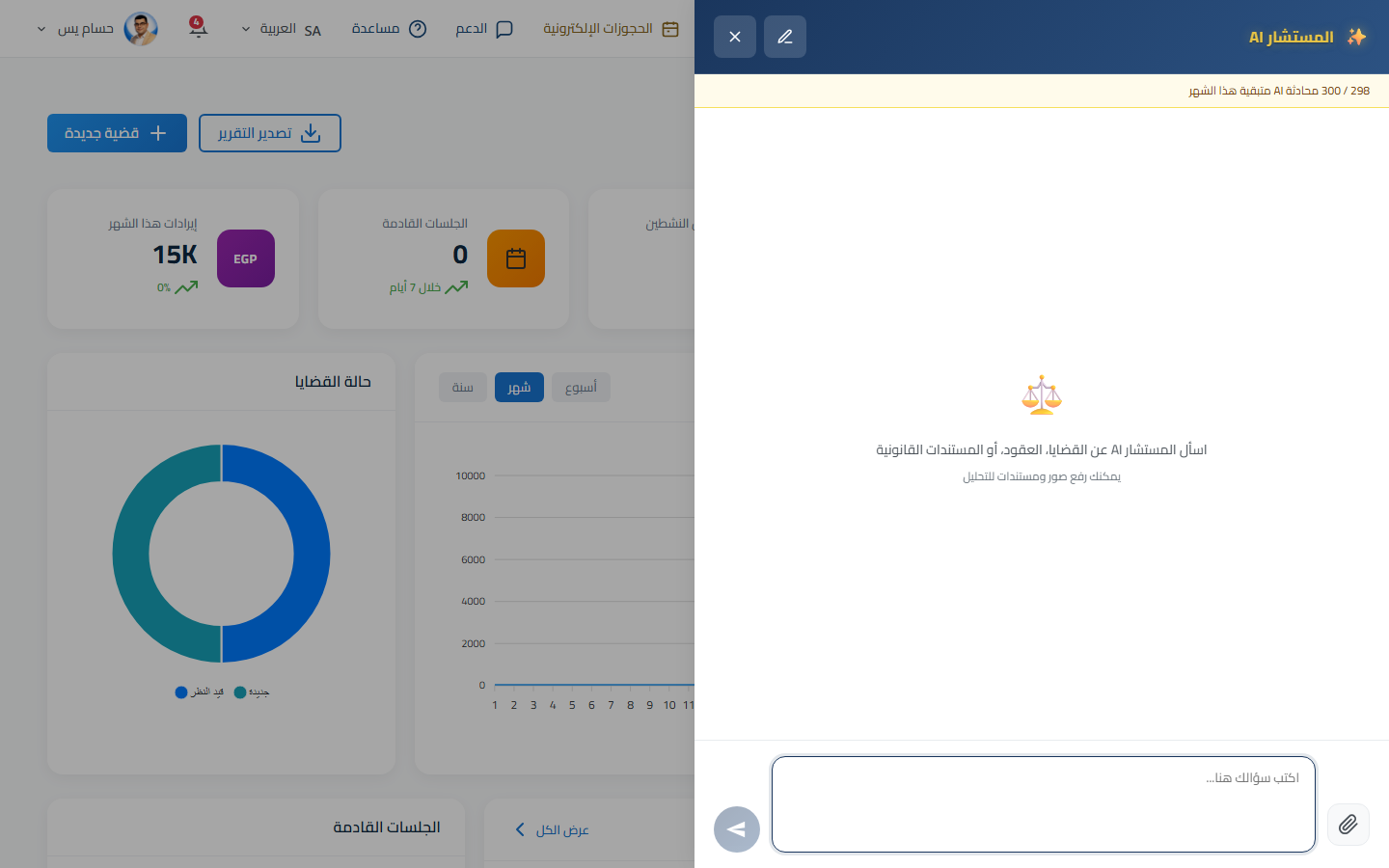
ALMostahsr AI

An AI assistant panel for drafting, summarizing, and exploring legal-office questions.

When should you use this page?

You need a starting draft or a quick explanation that you will review.

Steps

  1. 1

    Select ALMostahsr AI from the navbar or sidebar.

  2. 2

    Describe the task and include necessary context.

  3. 3

    Review the answer carefully.

  4. 4

    Ask a follow-up question or copy the useful result.

  5. 5

    Verify legal content before using it.

Practical tips

  • Do not treat generated text as final legal advice without professional review.
Arabic app screen
Arabic AI assistant panel.
Collaboration, Support & Account

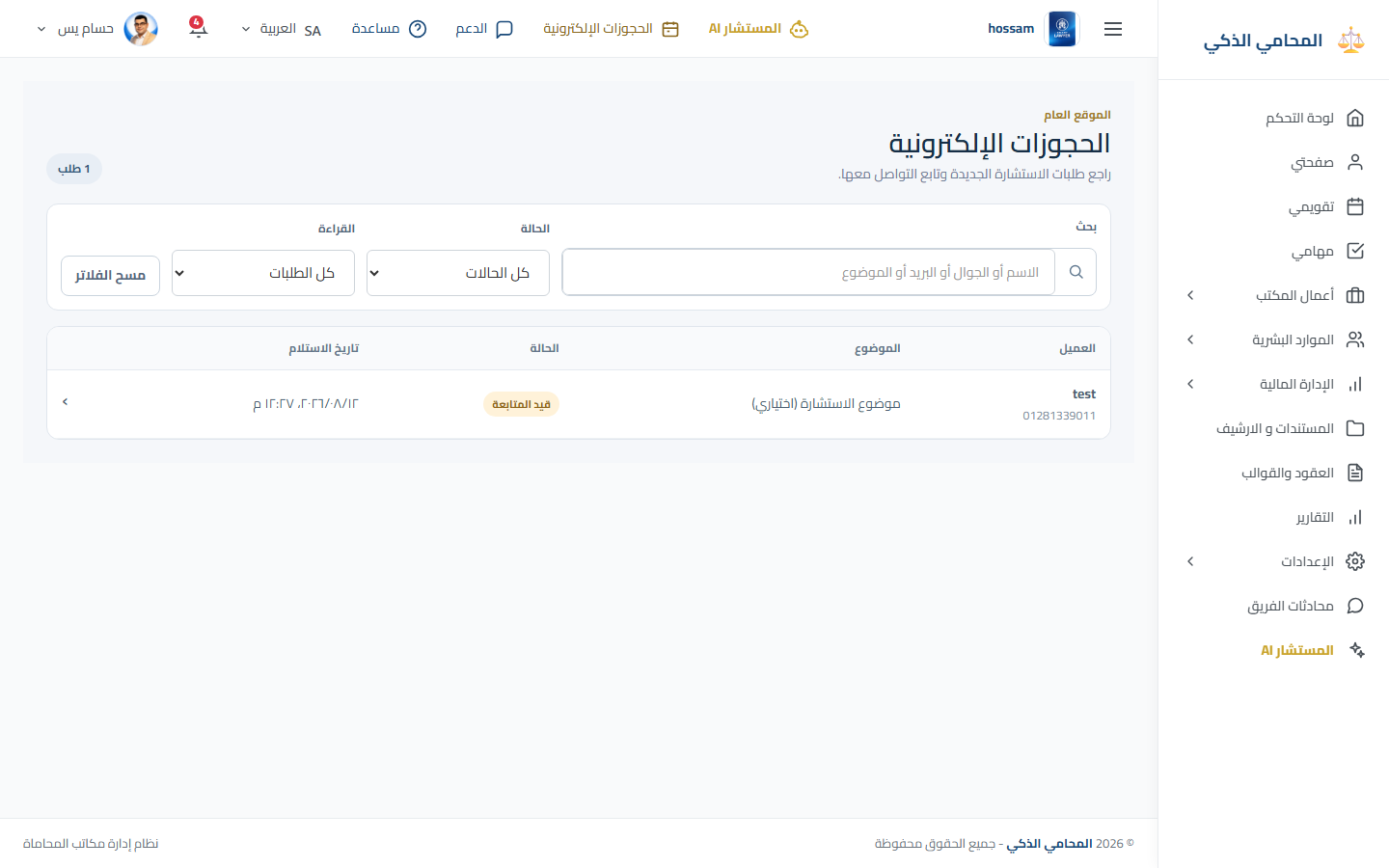
Online Reservations

Review appointment requests submitted through the office public website.

When should you use this page?

Confirm, update, or follow up a visitor reservation.

Steps

  1. 1

    Open Online Reservations from the navbar.

  2. 2

    Filter or open an unread request.

  3. 3

    Review visitor, service, date, and message details.

  4. 4

    Update the reservation status.

  5. 5

    Contact the visitor or add follow-up details.

Practical tips

  • Available when the office public website feature is enabled.
Arabic app screen
Arabic online reservations.
Collaboration, Support & Account

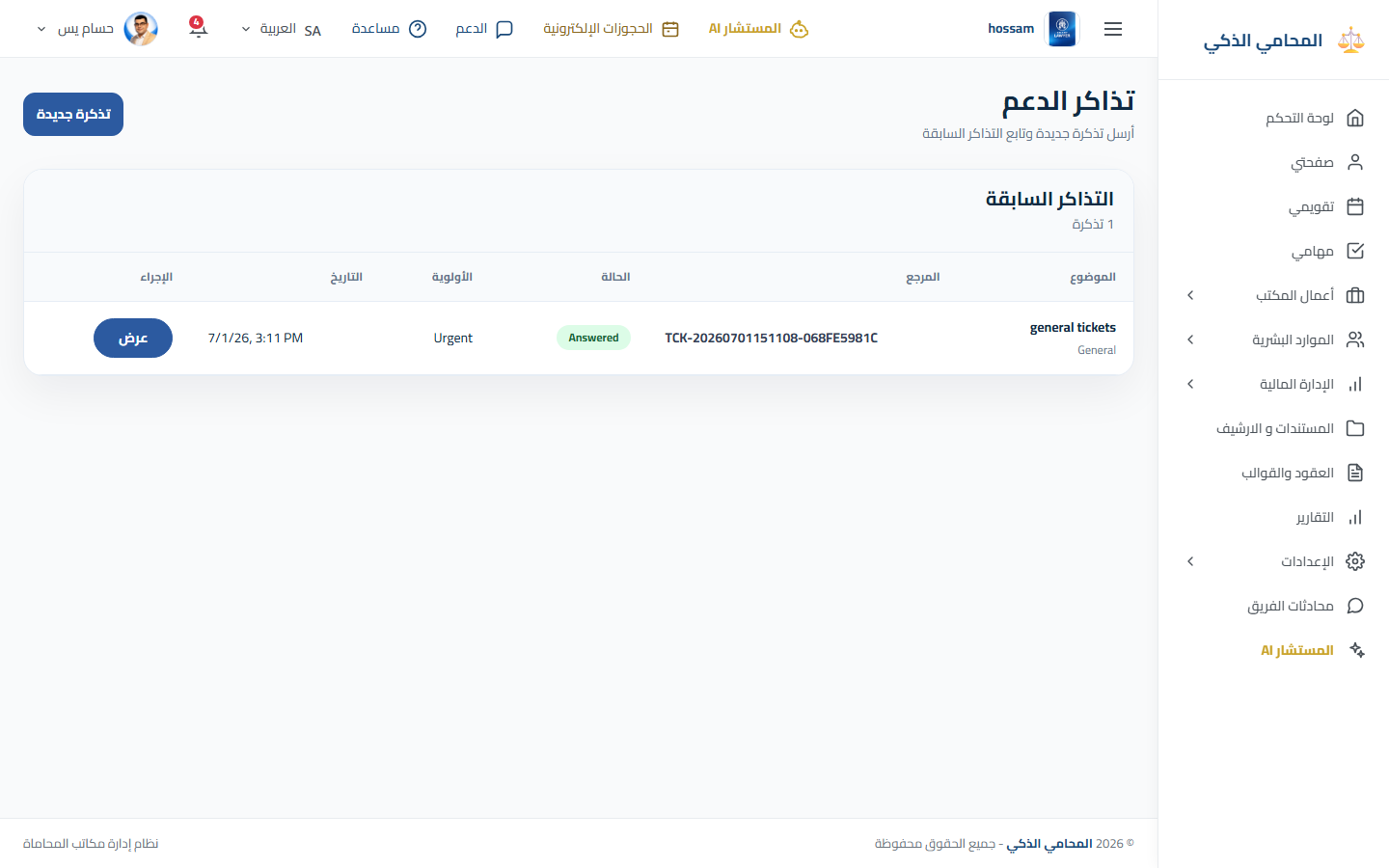
Support Tickets

Create and follow conversations with the SmartLawyer support team.

When should you use this page?

Report a technical issue or request product assistance.

Steps

  1. 1

    Open Support from the navbar.

  2. 2

    Search existing tickets before creating another.

  3. 3

    Select New Ticket.

  4. 4

    Enter a clear subject, description, priority, and attachments.

  5. 5

    Submit the ticket.

  6. 6

    Open it later to read or send replies.

Practical tips

  • Include the page name and steps that caused the issue.
Arabic app screen
Arabic support tickets.
Collaboration, Support & Account

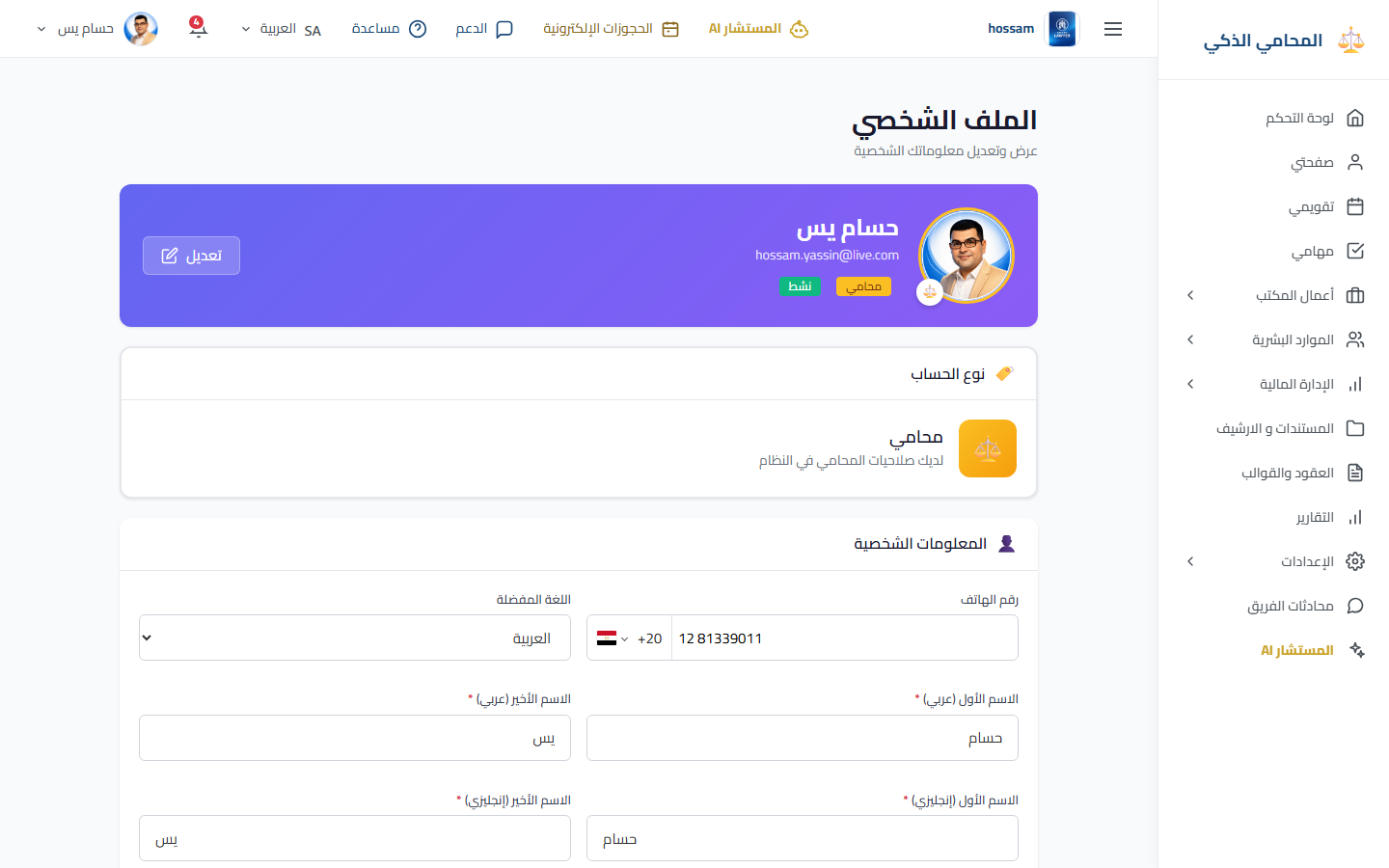
Profile

Update your personal name, contact information, and profile image.

When should you use this page?

Your own account details or picture need changing.

Steps

  1. 1

    Open the profile menu, then Profile.

  2. 2

    Review your personal and contact data.

  3. 3

    Change the required fields.

  4. 4

    Upload or replace the profile image.

  5. 5

    Save and verify the navbar information.

Practical tips

  • Use Change Password for password updates.
Arabic app screen
Arabic profile page.
Collaboration, Support & Account

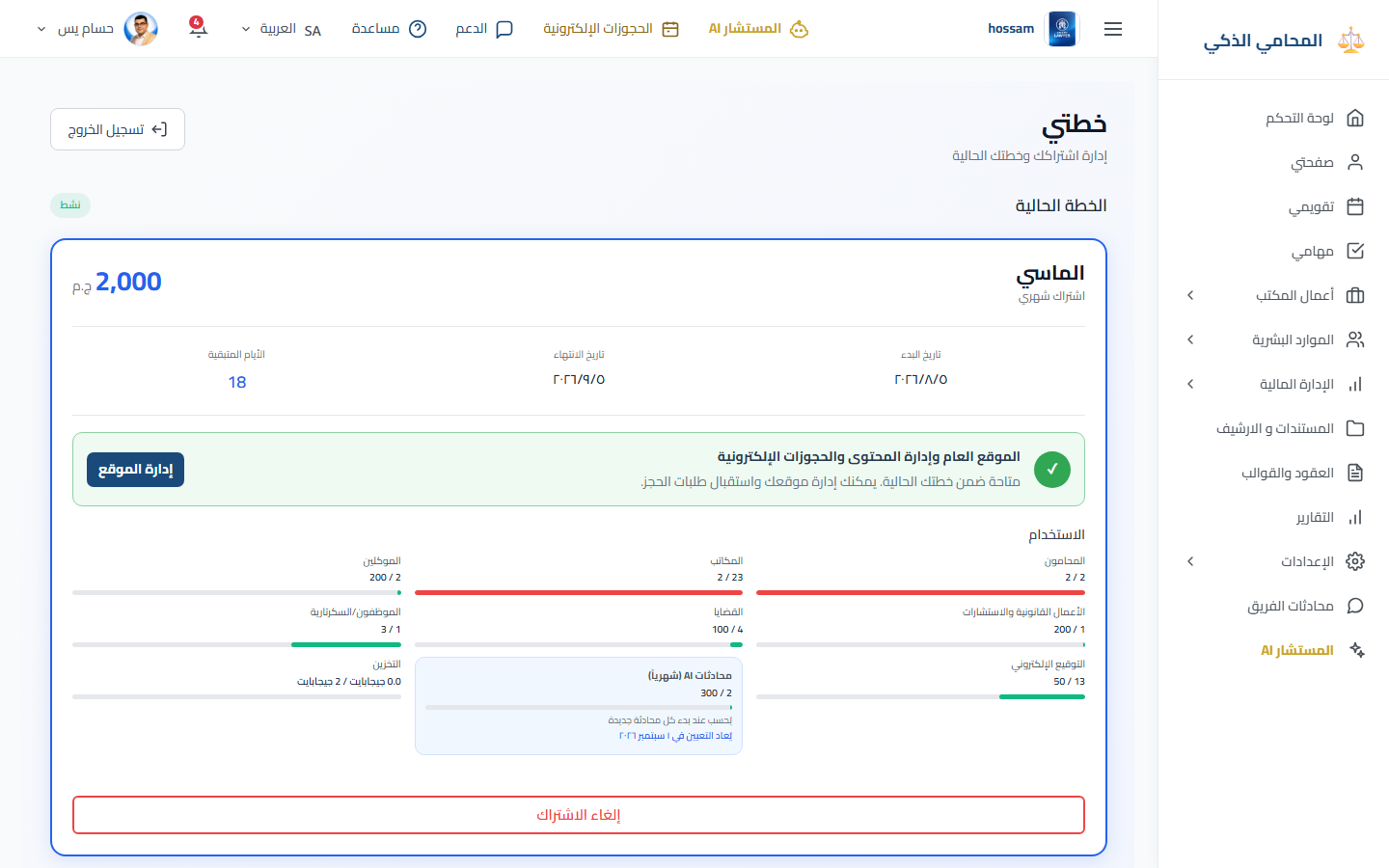
My Plan

Review the office subscription, enabled features, usage limits, and renewal information.

When should you use this page?

Check plan access or prepare for subscription renewal.

Steps

  1. 1

    Open the profile menu, then My Plan.

  2. 2

    Review plan name and status.

  3. 3

    Check enabled features and current usage.

  4. 4

    Review expiry and renewal information.

  5. 5

    Use the available action if a plan change is needed.

Practical tips

  • This page is available to tenant administrators.
Arabic app screen
Arabic subscription plan.
Collaboration, Support & Account

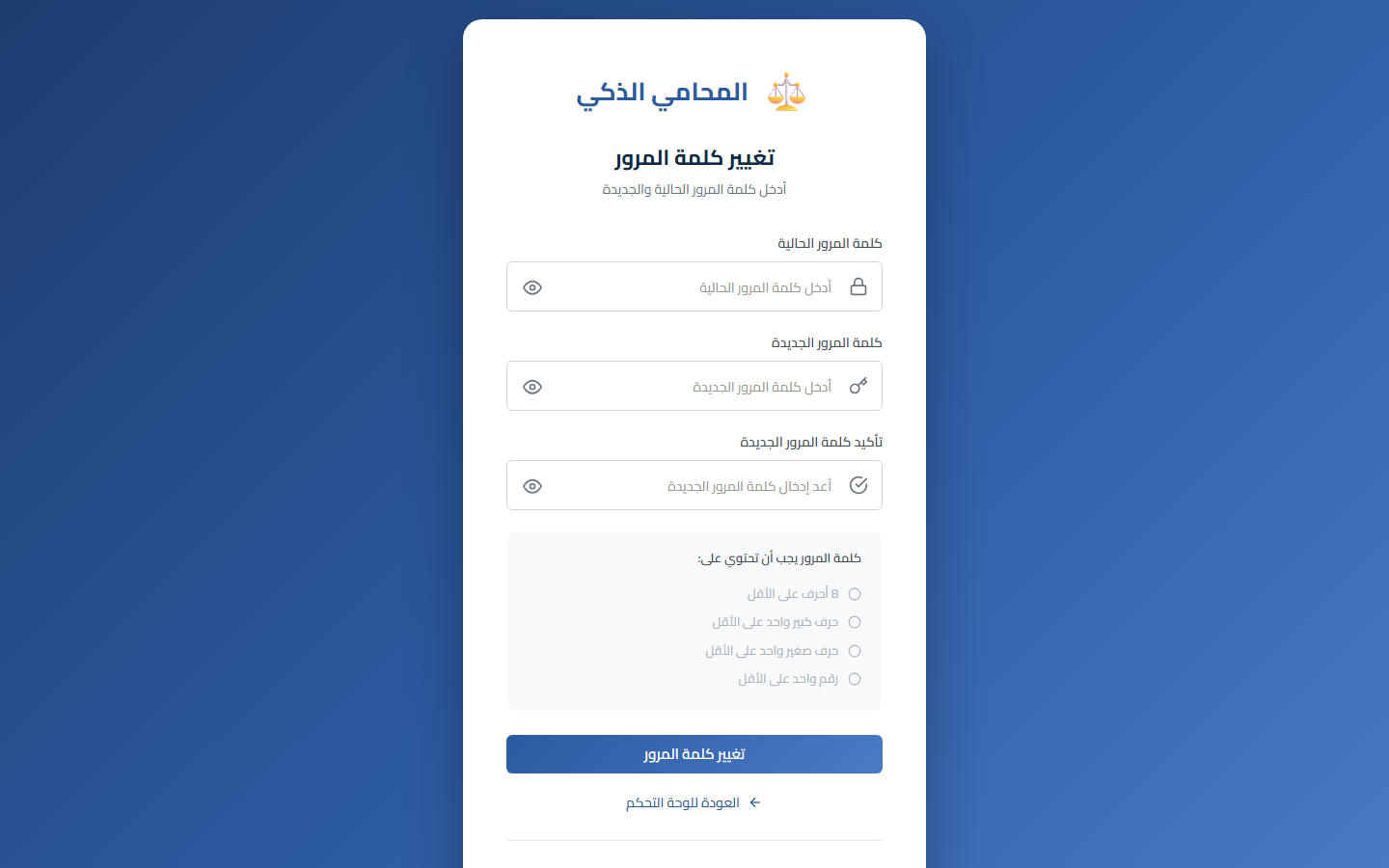
Change Password

Replace your current password with a new secure password.

When should you use this page?

Update your password regularly or after a security concern.

Steps

  1. 1

    Open the profile menu, then Change Password.

  2. 2

    Enter the current password.

  3. 3

    Enter and confirm the new password.

  4. 4

    Submit the change.

  5. 5

    Sign in again if the session is ended.

Practical tips

  • Use a unique password and never share it in tickets or messages.
Arabic app screen
Arabic change password page.
Still need help?

Send a ticket to the support team

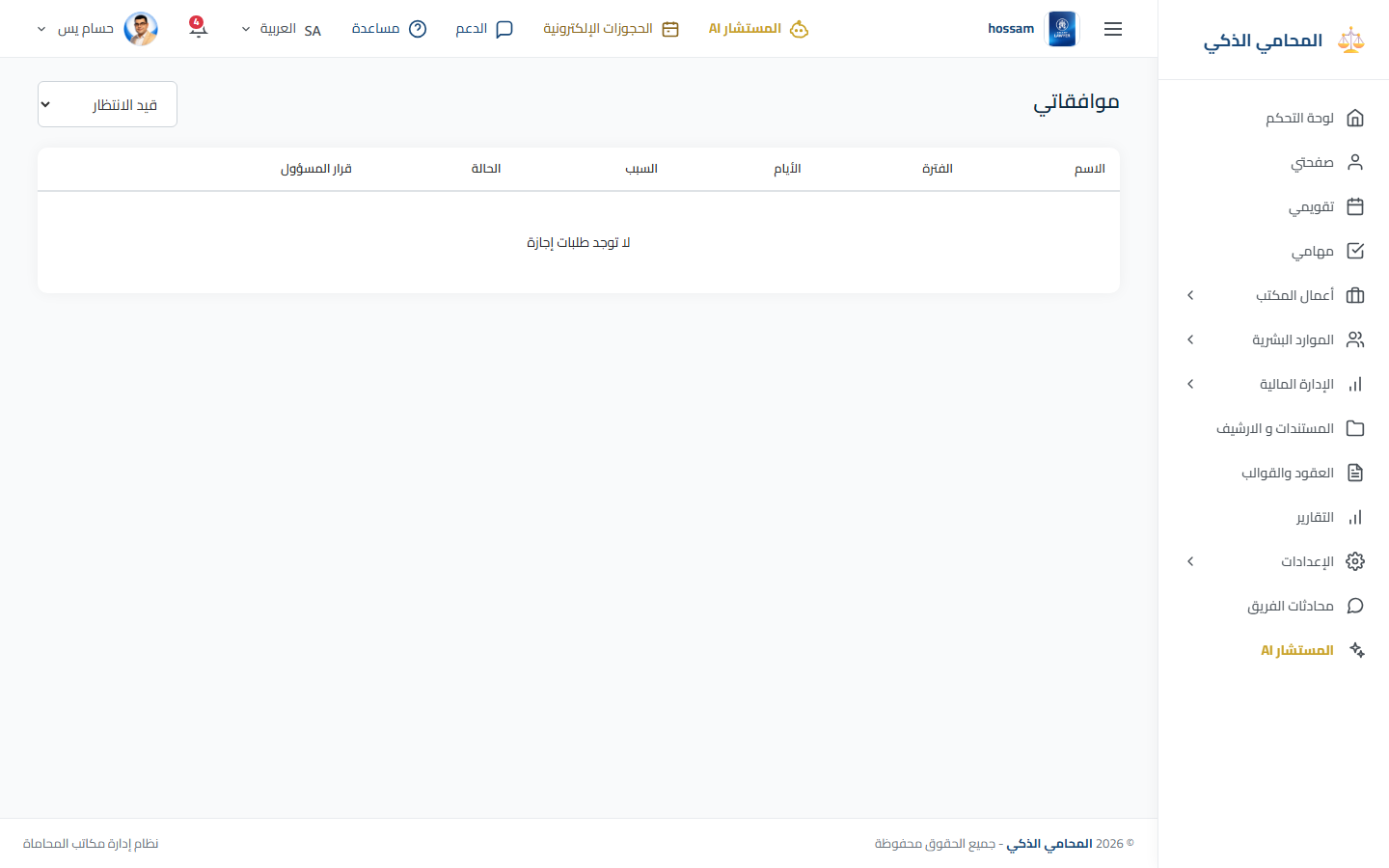
Include the page name, the steps you followed, and a screenshot of the issue when possible.
Sign in